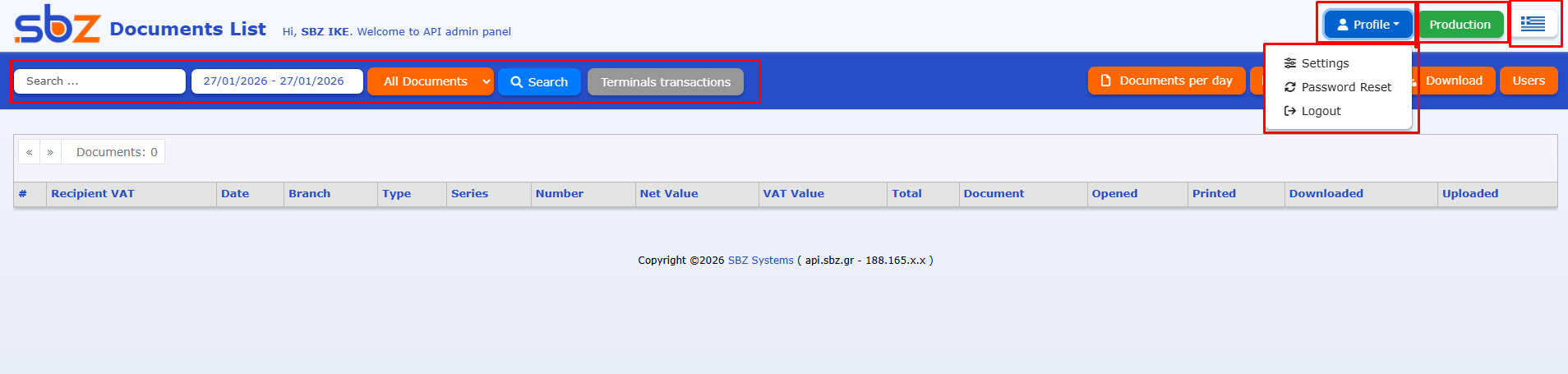
Platform Login: Once your registration has been approved, you can log in to the platform using the email and password you provided. If you have misplaced your credentials, please use the “Forgot Password” option for immediate recovery.
Dashboard Navigation: The home page provides a comprehensive overview of your documents. In the top-left corner of the screen, you will find:
-
Language Toggle: Switch between Greek and English.
-
User Profile: Manage your account details and settings.
-
Environment Switch (Production / Sandbox): This button indicates your current workspace. By selecting the Sandbox environment, you are transferred to a testing area where you can perform integration checks and issue test documents without affecting your live data.
Settings & Configuration
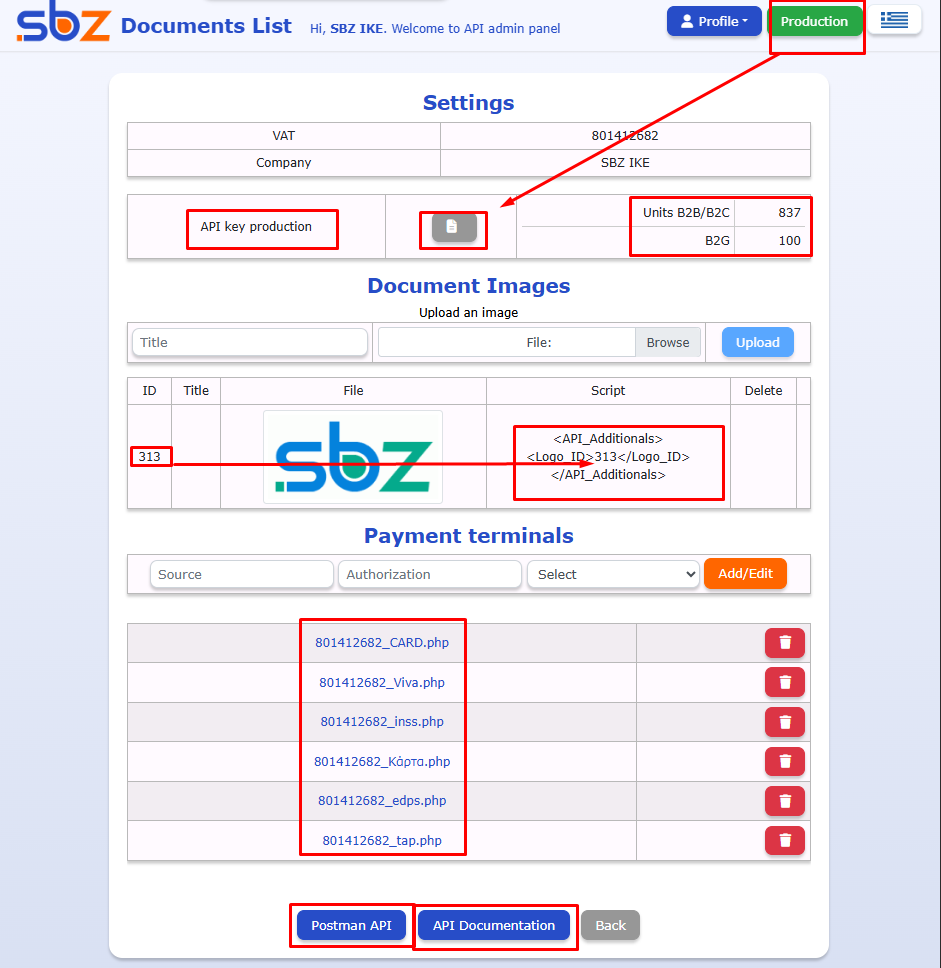
In the Settings section, you have the following capabilities:
-
Monitor Unit Balance: Track your available units in real-time.
-
Manage API Keys: Copy the API Key corresponding to your selected environment (Production or Sandbox).
-
Document Customization: Upload your company logo to be automatically displayed on issued documents. Please ensure that the assigned Logo ID (e.g., 313) is correctly implemented within your code.
-
Manage POS Terminals: Connect and monitor your linked payment terminals.
Technical Support & Documentation
At the bottom of the page, you will find permanent links to the Postman API collection and the complete API Documentation, ensuring you have immediate access to all the necessary resources for your technical implementation.
.
Document Monitoring & Status Indicators
As soon as you begin testing, your documents will automatically appear on the home page. Each document successfully transmitted to the Provider is accompanied by specific icons indicating its status and type:
| Icon | Description |
| ⭕ | IRIS: Indicates a payment made via IRIS. |
| 🏦 | B2G: Document addressed to the Public Sector. |
| 💳 | Card Payment: Transaction settled via a credit/debit card (POS). |
| 📄 | View PDF: Preview of the document issued. |
</> |
XML: View the raw XML file as transmitted from your software to SBZ and myData. |
| 🍴 | Hospitality: Indicates a document related to restaurant or food services. |
Note: These symbols allow you to quickly verify transmission accuracy and payment methods at a glance, without needing to open each document individually.
Advanced Preview Options
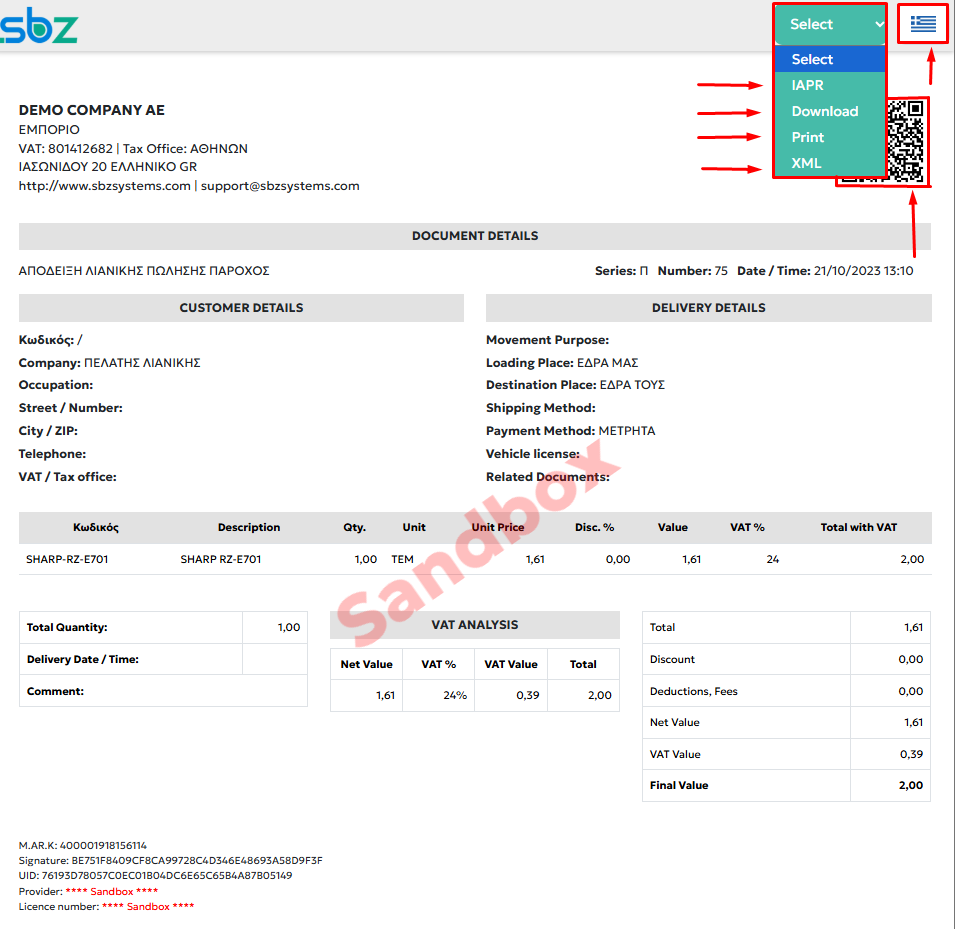
By clicking the 📄 (PDF) icon, you can view the document’s digital representation as it appears when scanned from the QR code. Within this preview, you also have the following options:
-
Language Toggle: Switch the document view between languages.
-
IAPR Verification: A direct link to view the document’s registration on the official IAPR portal.
-
Simplified XML View: Displays the technical details of the document in a readable format, including the classification and type (e.g., 1.1 Sales Invoice, category1_1, etc.).