SBZ Staff is an app for recording attendance, leave, and reports.
This guide is for companies, admins, and accountants.
-
Sign in
- Open the login page and enter your email and password.
- If the account is pending, wait for approval from the superadmin.
- If the account is active, you sign in normally.
- If you forgot your password, tap “Forgot password” on the login page.
After sign-in: admins see Reports. Accountants see their own dashboard.
Roles
Each person has one role. The role decides what they can do in SBZ Staff.
Role What you can do Admin Full access: staff, attendance, leave, approvals, reports, settings, QR station. Admin accountant Staff (no delete), attendance, leave, and reports. Accountant Statistics and reports. You can open the QR station. You do not manage staff or leave. Employees have their own roles (Employee or Online employee). Those are explained in the staff guide.
QR station
The QR station is the screen used at the workplace so employees can check in, take a break, and check out.
- It is set under Settings → QR Station (admin only).
- There you find the link and the security key. Do not share them freely — the key is like a password.
- Employees show their own personal QR (or type AFM or AMKA).
- Leave the camera open on the station phone or tablet.
What the admin does
Staff
In the Employees menu you can:
- create accounts,
- approve or reject new registration requests,
- set role, schedule, break limit, and leave days,
- record check-in or check-out for an employee when needed — for example after a technical problem,
- turn on Computer recording for the PC helper, copy or renew the Computer helper key, and open Screenshots (Live / Offline badge).
An admin can also delete an account, sign in as an employee, or clear attendance records.
Attendance
In the Attendance menu you see who checked in, who took a break, and who checked out. You can filter by date and employee and download an Excel file.
Re-check-in requests
Sometimes an employee needs approval to check in again. They send a request. Only an admin can approve or reject it on the related page.
Hours
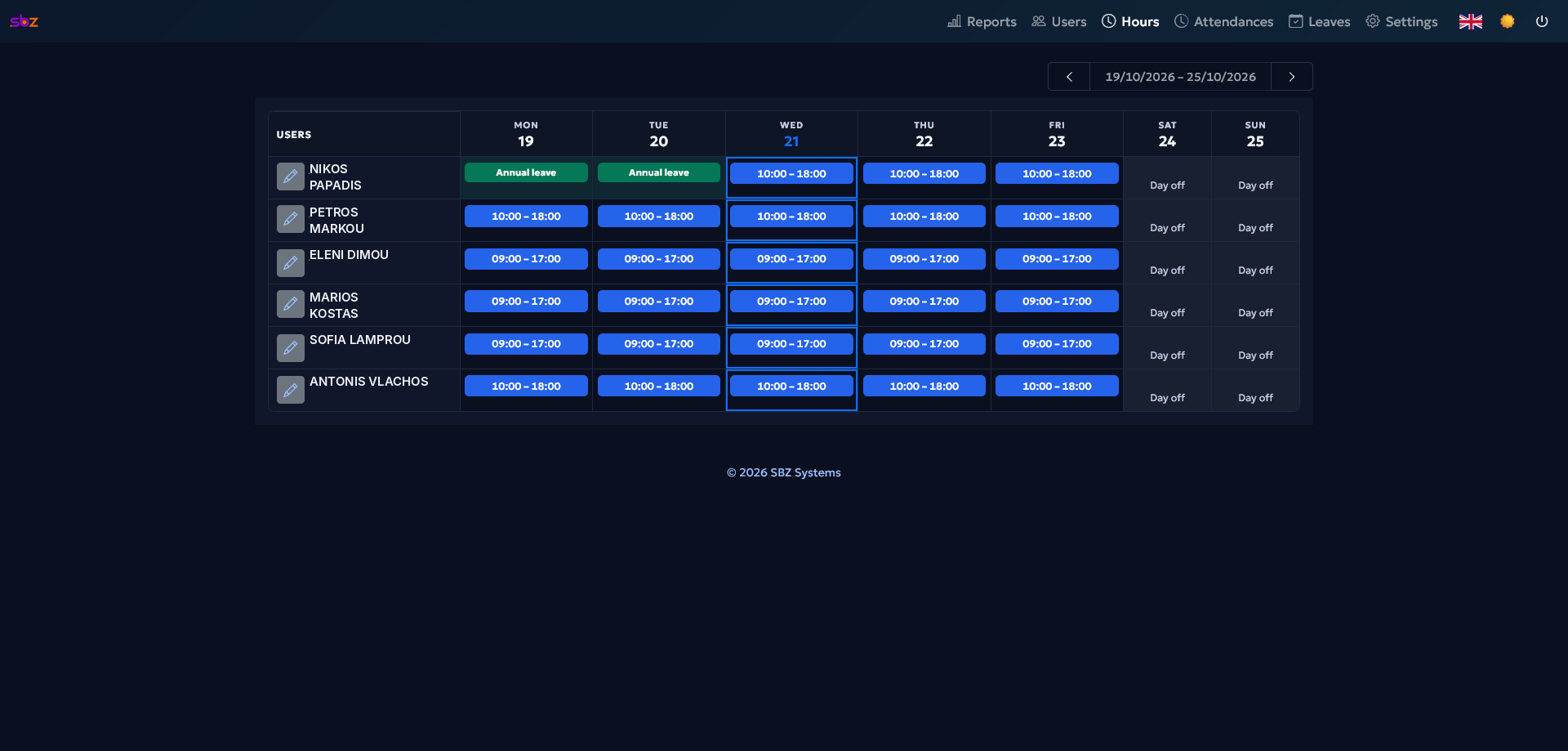
In the Hours menu you see the weekly schedule per employee. Each cell shows a shift (e.g. 09:00 – 17:00), a leave badge (e.g. Annual leave), or Closed when the day is not a working day. Use the arrows to change week. Use the pencil next to a name to edit hours.

Leave
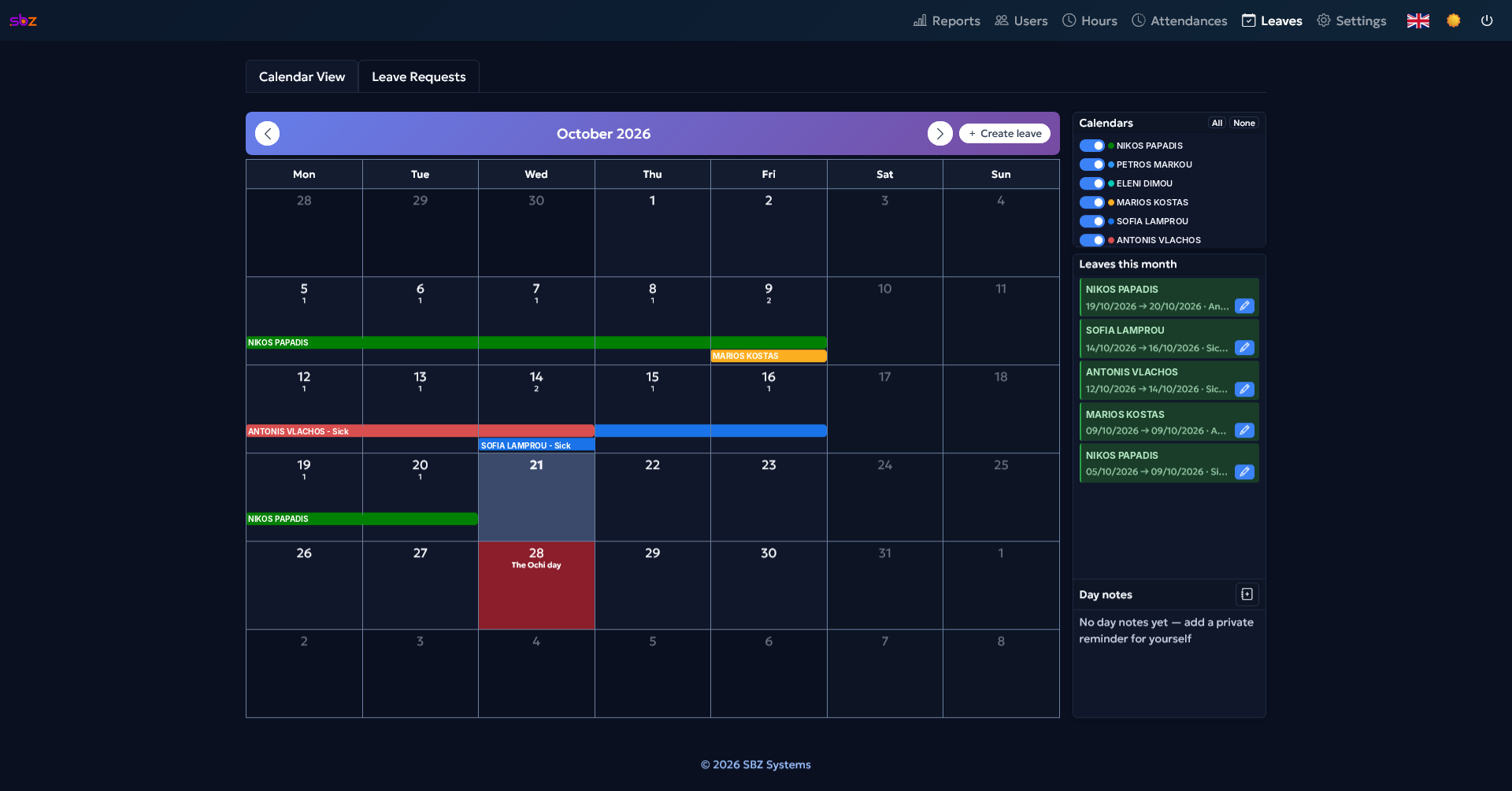
In the Leaves menu you approve or reject leave requests and change requests. On the Calendar tab you see all leaves for the month, colour-coded per person, holidays, and the Leaves this month list. You can create leave with the Leave button, toggle employee calendars, and add private day notes.
Use the Closed button to mark days when the company is closed (for example a special shutdown). When you turn it on, a short explanation appears. Then click a day on the calendar to mark it closed; click the same day again to reopen it. Closed days use the same grey look as non-working days and show the label Closed. On those days employees do not need to check in or check out, and the days do not count as leave working days. Click Closed again to leave this mode.
The Annual list tab shows approved leaves per employee for the year (year navigation and employee filter). The XLSX export downloads all approved leaves for the year — one sheet per employee with totals by leave type at the end of each sheet. The Requests tab is for pending requests and period filters.

Reports
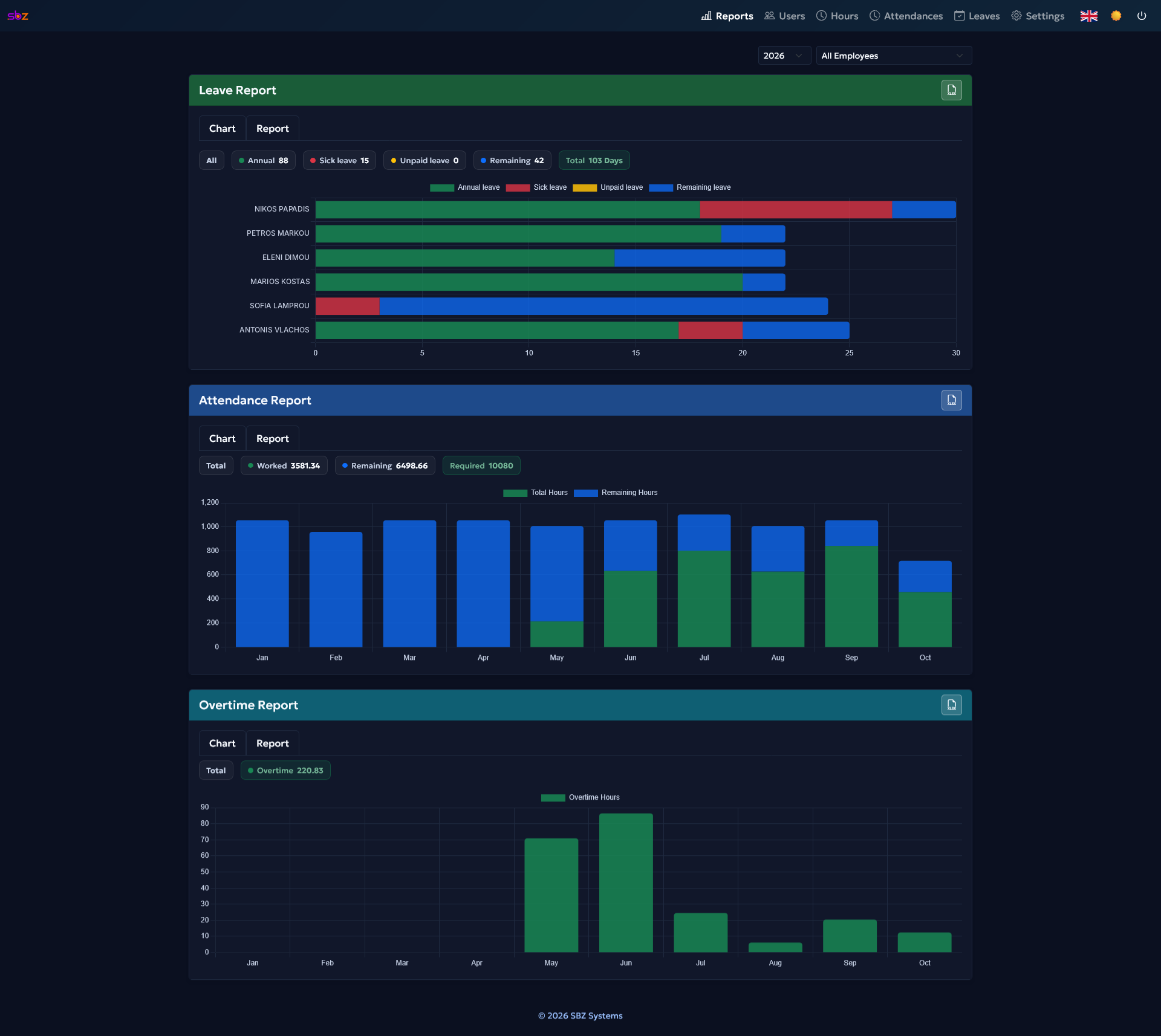
In Reports you pick a year and an employee (or all). You see three charts: Leave Report, Attendance Report, and Overtime Report. Each section has a Chart / Report toggle and Excel export. Accountants use their own reports.

Company settings
Only an admin opens Settings:
- Company — name, country, time zone, and your own password change.
- Install — install the company app and download PC helper (Windows).
- ERGANI (Greece only) — Digital Work Card connection and early check-in / overtime check-out timing.
- Leave — holidays, max people off the same day, minimum notice, auto-approve, automatic leave for missing check-in and check-out, emails to accountants.
- Reminders — attendance reminder channels and SMS provider.
- QR Station — station link and key.
- Activity — idle, screenshots, auto break when idle, storage, and Close all PC helpers. Recording runs all day while the helper is logged in. Details in the PC helper guide.
- Diagnostics — check that email or notifications arrive.
Accountant
- You see statistics and download CSV files.
- You open accountant reports.
- If the company enables it, you receive email summaries of leave decisions (for example sick leave daily, other leave on chosen days of the month).
- You can use the QR station.
An admin accountant can do a bit more: also view attendance / leave / staff (no delete), but not company settings.
ERGANI (Digital Work Card)
If your company is in Greece and you have an ERGANI account:
- The admin enters username and password in Settings → ERGANI, tests the connection, and can set early check-in / overtime check-out timing.
- When someone clocks attendance, SBZ Staff tries to send the event to ERGANI.
- Green = sent. Red = failed. You can resend from the screen.
- If the send is late, the system may ask for a delay reason.
- From Settings you can also open the official ERGANI website.
If the connection often fails, first check the connection test in Settings or contact support.
Messages
The Messages menu helps you see whether an email, push, or SMS was sent (sent or failed). It does not show whether the message was opened.
- Open Messages from the top bar.
- Filter by date, channel, or type.
Notifications
- In the app — for example a new leave request or approval request.
- Email — pending leave, late attendance, accountant summaries, ERGANI problems (when enabled).
- Push / SMS — optional, from Settings.
- Send history — from the Messages menu (who received email, push, or SMS).
Computer activity (PC helper)
SBZ Staff PC helper helps you see idle time and screenshots on the work computer, all day while the helper is logged in.
- Set the limits in Settings → Activity.
- Turn recording on per person under Employees (Computer monitoring + Computer key).
- The tray acknowledgement confirms activation; it is not GDPR consent.
- PC idle alone does not prove the person was not working.
- Full guide: PC helper – Computer activity.
Documents
Documents helps you send PDFs for staff to sign (packages Basic Plus and Full). The menu appears only when your package includes it.
- Open Documents from the menu.
- Under New send, enter a Title, Send day and time, and optionally a Reply email (empty = company email), then Create.
- Upload PDFs (max 10 MB each). Multi-page files are split automatically — one page per employee.
- Assign an employee to each file you want to send. You do not need to assign every file; at least one assigned employee with a valid email is required before Schedule.
- Use Preview to open the PDF and check it.
- Click Schedule. At the time you set, assigned employees see the document in Staff to sign (they also get a notification).
- After signing, Staff emails the signed PDF to the employee. The employee forwards it to the company with Send to employer (prefer Forward, not Reply — many apps drop the PDF).
- When the message arrives, mark Mark received in the list.
- You can Cancel a draft or scheduled send before it is released.
- Leave application (annual or unpaid): in Documents you create a template with a max days limit. When an employee requests leave within that limit, they automatically get a PDF to sign under Documents. Without a template, leave still works without signing.
Common problems
- Camera does not open at the station: Allow the camera in the browser and open the link with https.
- New account pending: Approve it under Employees.
- Red ERGANI mark: Resend from the screen. If it keeps failing, test the connection in Settings.
- Forgotten password: Use “Forgot password” or reset access as an admin.
- PC helper shows Not recording: Check that the helper is logged in and that Computer recording is enabled for the person.
- No screenshots uploading: Check Computer recording is on, the helper is Live, and the screen changes enough for a new shot.
- I do not see Documents in the menu: Your package may be Basic, or your role is not admin. Ask your SBZ Staff contact.