


The SBZ Staff PC helper is a small Windows (and macOS) tray app. It helps the company review idle time and screenshots.
This guide is for company admins and for employees who have Computer recording turned on.
-
What it does
- Records input idle.
- Uploads screenshots when the screen changed enough, while the helper is logged in.
- Shows capture status in the tray: Recording, Not recording, or Not logged in.
- PC idle alone does not prove the employee was not working.
-
Who this is for
- Admin — company settings, per-person recording, screenshot review, remote close of all helpers.
- Employee / Online Employee — runs the PC helper on the work computer and can open their screenshots page.
- The Accountant does not configure the PC helper.
-
Before you start
- You need an active SBZ Staff account.
- An admin must enable Computer recording for the employee under Employees.
- Install the SBZ Staff PC helper executable on the work computer (no extra runtime).
- Capture runs all day while the PC helper is logged in (with tray acknowledgement).
-
Screens and menus
Company settings → Computer activity
- Input idle (minutes) — after this many minutes without input, time counts as idle. Shorter idle slices are ignored.
- Screen change to upload (%) — how much the thumbnail must change for a new screenshot (1–25).
- Auto break when idle — subtracts idle time from worked hours on dashboards/reports. It does not start/end an attendance break.
- Advanced — JPEG quality, max width, keep history (days), storage (SBZ Staff only / folder / SFTP).
- Close all PC helpers — queues a close signal; each app exits on its next heartbeat (within about 1 minute). Does not log out or remove auto-start.
Employees
- Edit the employee and turn on Computer recording.
- You see the Computer helper key (copy / new key). A new key stops the old one.
- Live / Offline shows whether the helper sent a recent heartbeat (about 3 minutes).
- The Screenshots button opens that person’s activity page.
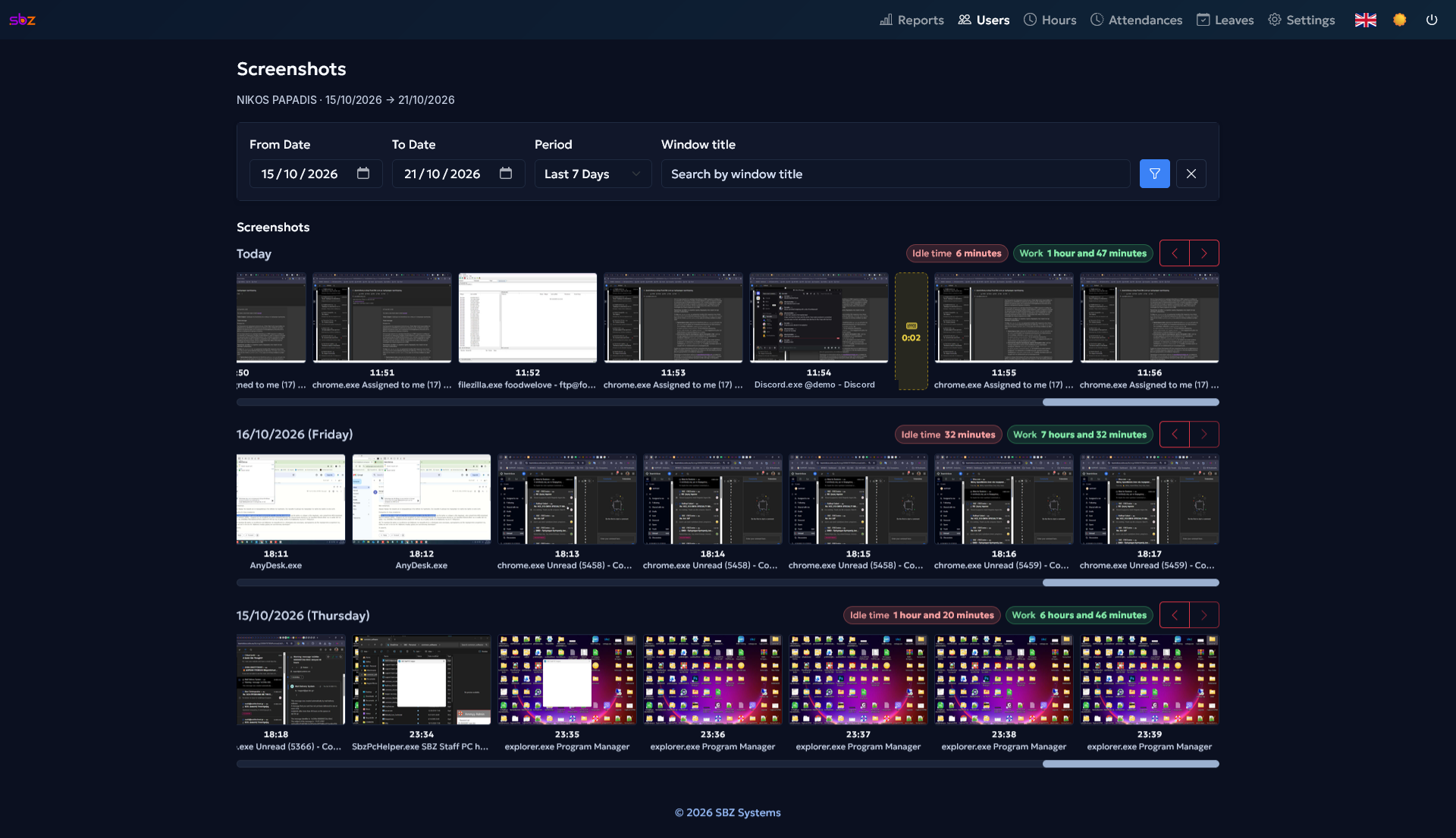
On the Screenshots page you filter by from/to date or period and search by Window title. Per day you see idle time, work time, and thumbnails with time and application.
Tray app (Windows)
- Sign in with company AFM + employee AFM/AMKA + password, or with the Computer helper key only.
- After login the app sends an enablement acknowledgement automatically (not GDPR consent).
- Right-click the tray icon: My screenshots, Logout, Quit.
- My screenshots opens a short-lived browser link to your screenshots page.
- Logout / Quit ask a simple Yes/No confirm (no password again).
- Quit removes auto-start and Task Scheduler; the app does not restart until you open it again.
-
First tasks (admin)
- Open Settings → Computer activity and set idle minutes, screen-change %, and retention days.
- Under Employees, enable Computer recording for the people who need it.
- Give the employee either their normal login details or the Computer helper key.
- Ask them to sign in to the PC helper. The tray tooltip should show Recording.
- Open Screenshots from the employee list to verify.
-
First tasks (employee)
- Open SBZ Staff PC helper.
- Sign in with company AFM / your AFM or AMKA / password, or with the key from your admin.
- Check the tray tooltip shows Recording while you are logged in.
- Open My screenshots from the tray menu, or My screenshots from the Dashboard.
-
Everyday use
- While you are logged in to the helper, capture continues all day. If you see Not recording, check the connection and that recording is enabled for your account.
- On the Screenshots page you see day totals (idle / work), idle gaps, and images with time and window title. There is a short recording notice and More information.
- You can filter by period and search by Window title.
- An admin can delete a screenshot from the same screen when needed.
-
Tips
- Keep the helper running on the work computer; after the first login it can auto-restart (Task Scheduler / LaunchAgent).
- If you renew the computer helper key, tell the employee right away.
- Use Close all PC helpers only when you want every active app to exit temporarily.
- Tray acknowledgement is not GDPR consent; informing employees remains the company’s responsibility.
-
Related
- Company help — settings and staff.
- Guide for staff — check-in / check-out and screenshots from the Dashboard.
- Settings guide.