


Instructions for Repair Shops & Vehicle Rental Businesses
Learn how to correctly register a Vehicle Check-In and Vehicle Check-Out for the new Digital Customer Registry using EMDI, with simple step-by-step instructions.
This guide explains how to record vehicle plates, mileage, customer details, and how to complete the final invoice or receipt.
How to Register a VEHICLE ENTRANCE
Go to Purchases / Sales 🔴 and select the document:
VEHICLE ENTRANCE
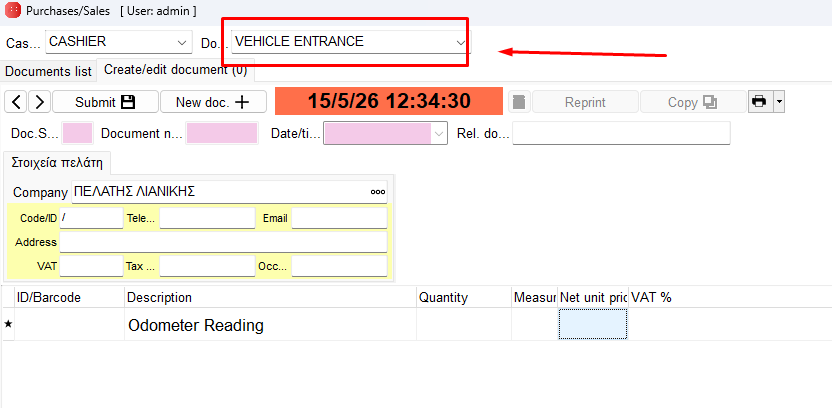
Then fill in the License Plate (Required), Customer Name (Optional), Mileage (Optional), Purpose of Visit / Movement (Optional)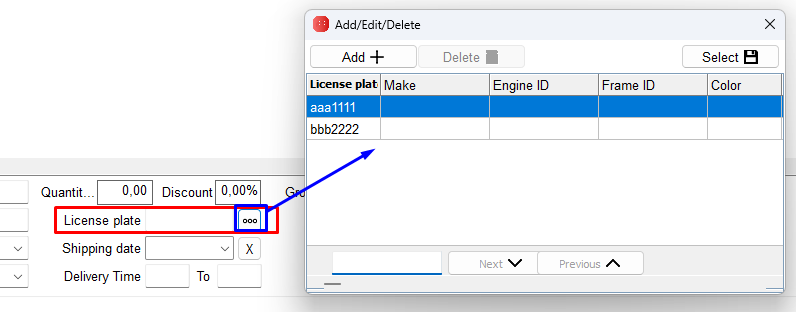
Once you have entered the License Plate (Required) and any additional details you want, click Submit💾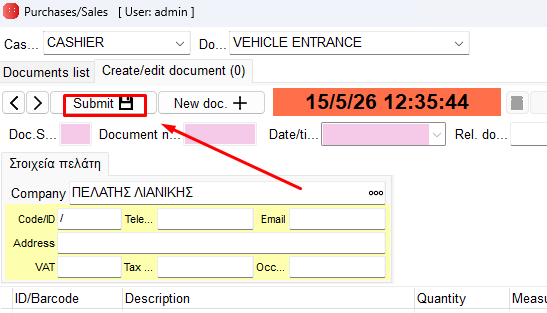
Checking Vehicle Status
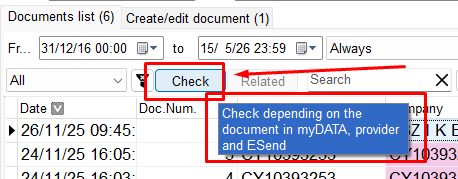
You can also go to the Document List to verify whether the VEHICLE ENTRANCE has been linked to another document.
1. If the message says “Not linked to any document“, this means the vehicle has not been checked out yet.
2. If the message says “Linked to another document“, this means the vehicle has already been checked out.
How to Register a VEHICLE CHECK-OUT
To complete a Vehicle Check-Out, first locate the VEHICLE ENTRANCE document created when the vehicle arrived.
Open it and select Copy
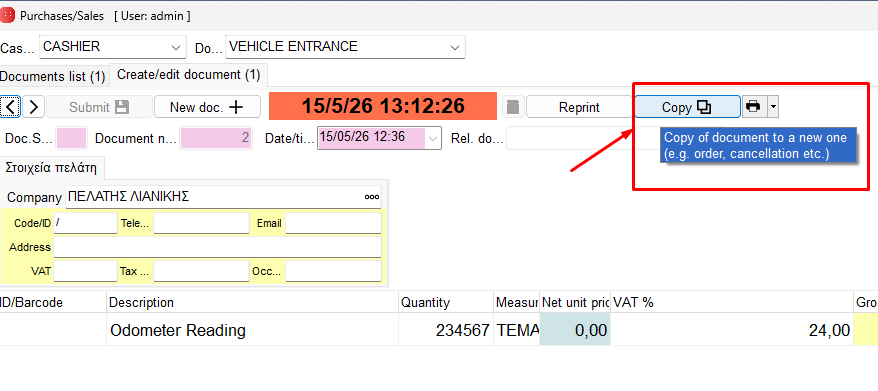
Then choose the final document you want to issue to the customer Invoice or Retail Receipt
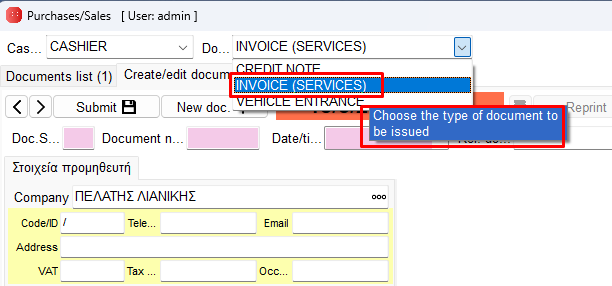
Continue creating your document as usual.Once completed, click Save 💾
The system will automatically complete the Vehicle Check-Out and link it with the invoice or receipt you issued.