


Close every EMDI window on all workstations and cash registers before you start.
EMDI upgrade guide in three steps:
- Backup
Right-click the EMDI shortcut and choose “Open file location”, or open the install folder, e.g.C:\Program Files (x86)\SBZ systems\EMDI. Copy the entire EMDI folder to a safe place (another drive or external disk). - Download the installer
Download EMDI from the product page for the edition you need, e.g. https://www.sbzsystems.com/software/emdi-business-management/ - Run the installer
Run EMDI.exe. In the wizard, accept the license and continue.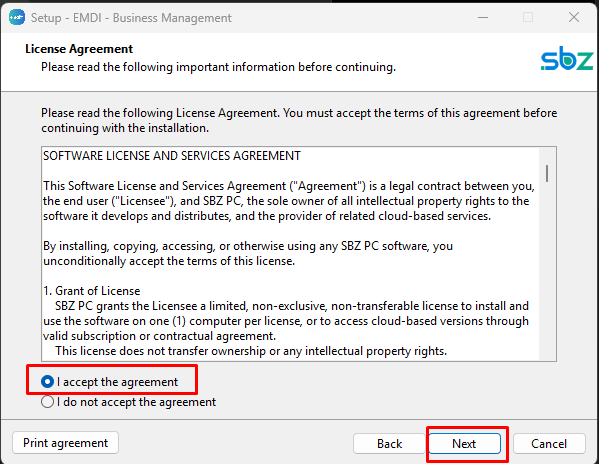
On the Database step, choose Install so the database is installed as a service.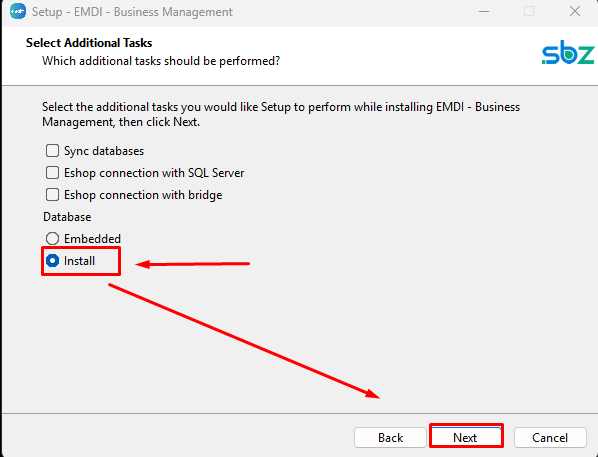
- Database upgrade
Run dbupgrade.exe from the EMDI install folder, e.g.C:\Program Files (x86)\SBZ systems\EMDI\upgrade
- The list should already contain the databases to upgrade. If the list is empty or a database is missing, click Add files and add it. You can select one or more databases. If none are selected, all listed databases are updated.
- By default the script
sqlupgrade.sqlappears at the bottom. If needed, click SQL script and change it. - Leave Fix database unchecked. Use it only when a database needs repair.
- Click Update DB and wait until it finishes. Progress appears in the log area, and at the end it is saved to
upgrade\emdi_dbupgrade.log.
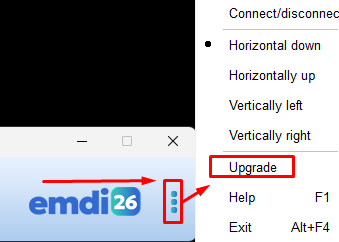
Alternatively from EMDI settings
From the three-dots menu you can choose Upgrade.
If you follow this procedure, the upgrade completes without data loss.
Related