


If you use a pre-printed form for the daily printing of your documents or simply want to use a different print form, you can temporarily select another digital print form that has been created for you.
1. Enable the form change option
From the document screen:
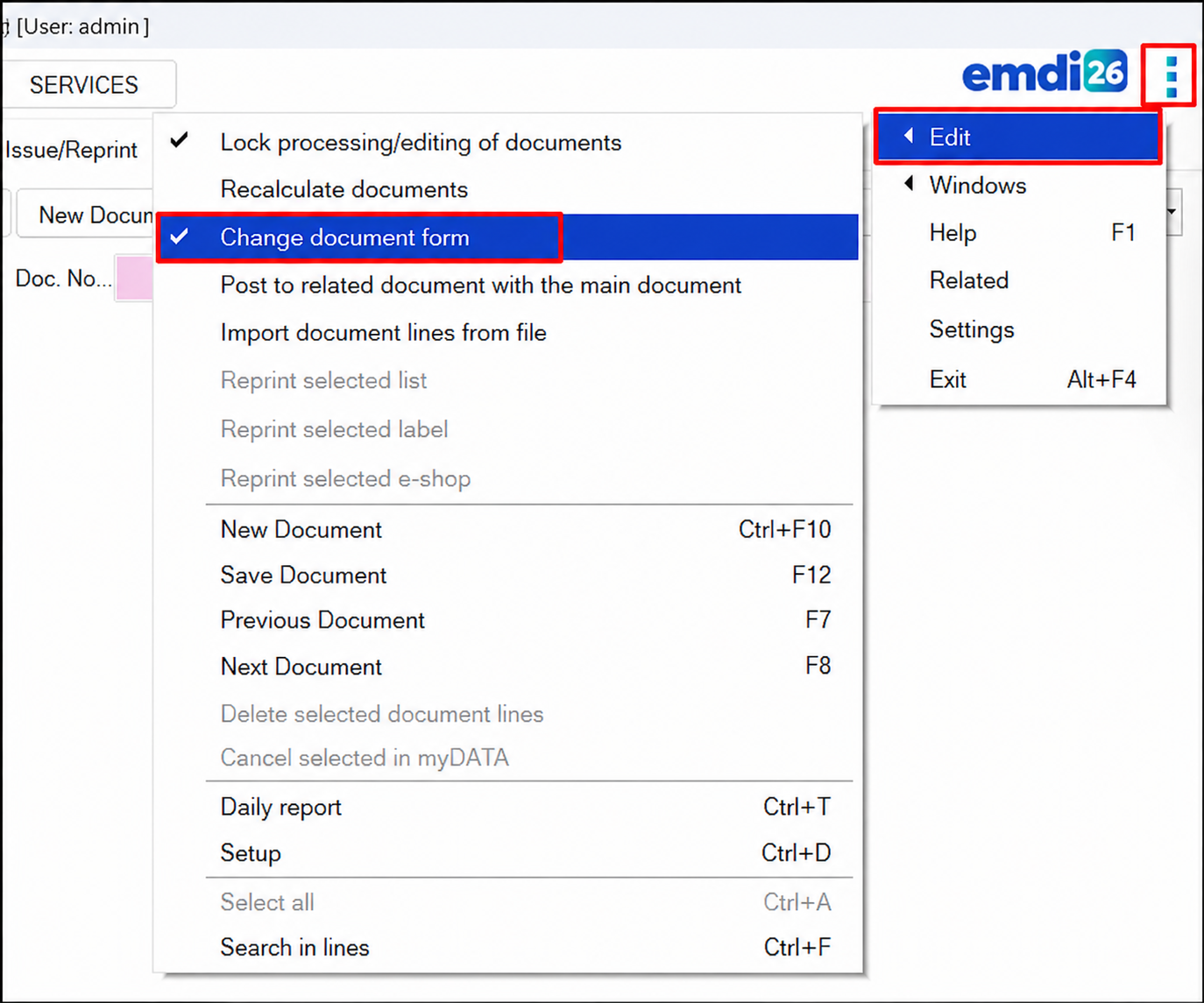
- Click the EMDI logo in the upper-left corner (or the three dots).
- Select Edit.
- Enable Change document form.
When this option is enabled, a ✔️ will appear next to Change document form.
2. Select the print form
Next:
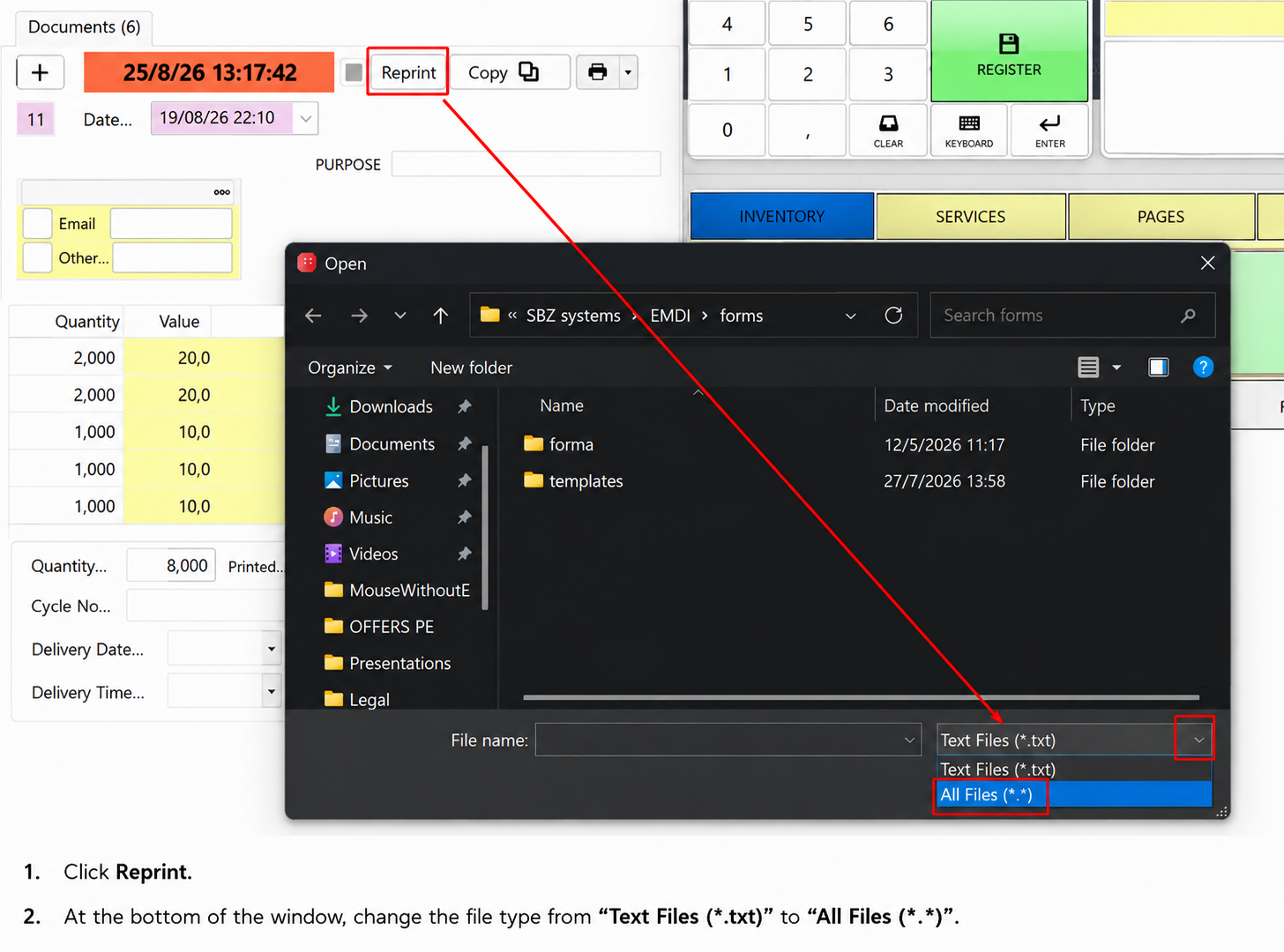
- Click Reprint.
- The print form selection window will appear.
- At the bottom of the window, change the file type from “Text Files (*.txt)” to “All Files (.)”.
- Locate and select the print form you wish to use.
- Click Reprint and choose whether you want to save the document as a PDF, send it via email, or print it using the desired printer.
3. Restore the default print form
Attention: Once you have finished sending, saving, or printing the document, you should restore the default print form.
Go back to:
EMDI Logo (or three dots) → Edit → Change document form
Click the option again so that the ✔️ is removed.
EMDI will then return to using the default pre-printed form for subsequent document printouts.
Important: Do not forget this final step. Otherwise, the alternative print form may remain enabled for subsequent document printouts.