


To enter a vehicle in EMDI, you have the option of either manually entering the details or using the camera feature.
To use the camera:
1. Right-click on the three dots next to the license plate input field.
2. Select “QR Code Vehicle Reading Application.”

3. Scan the QR code displayed on the screen using your mobile phone.
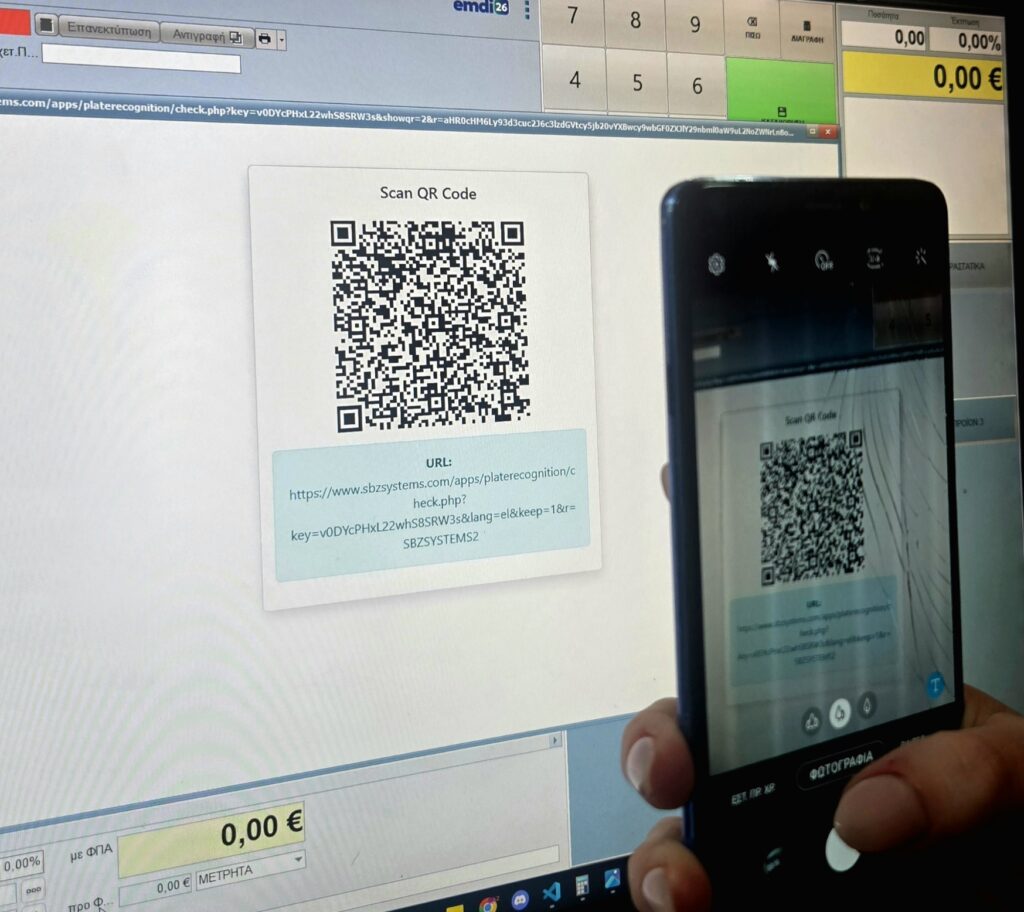
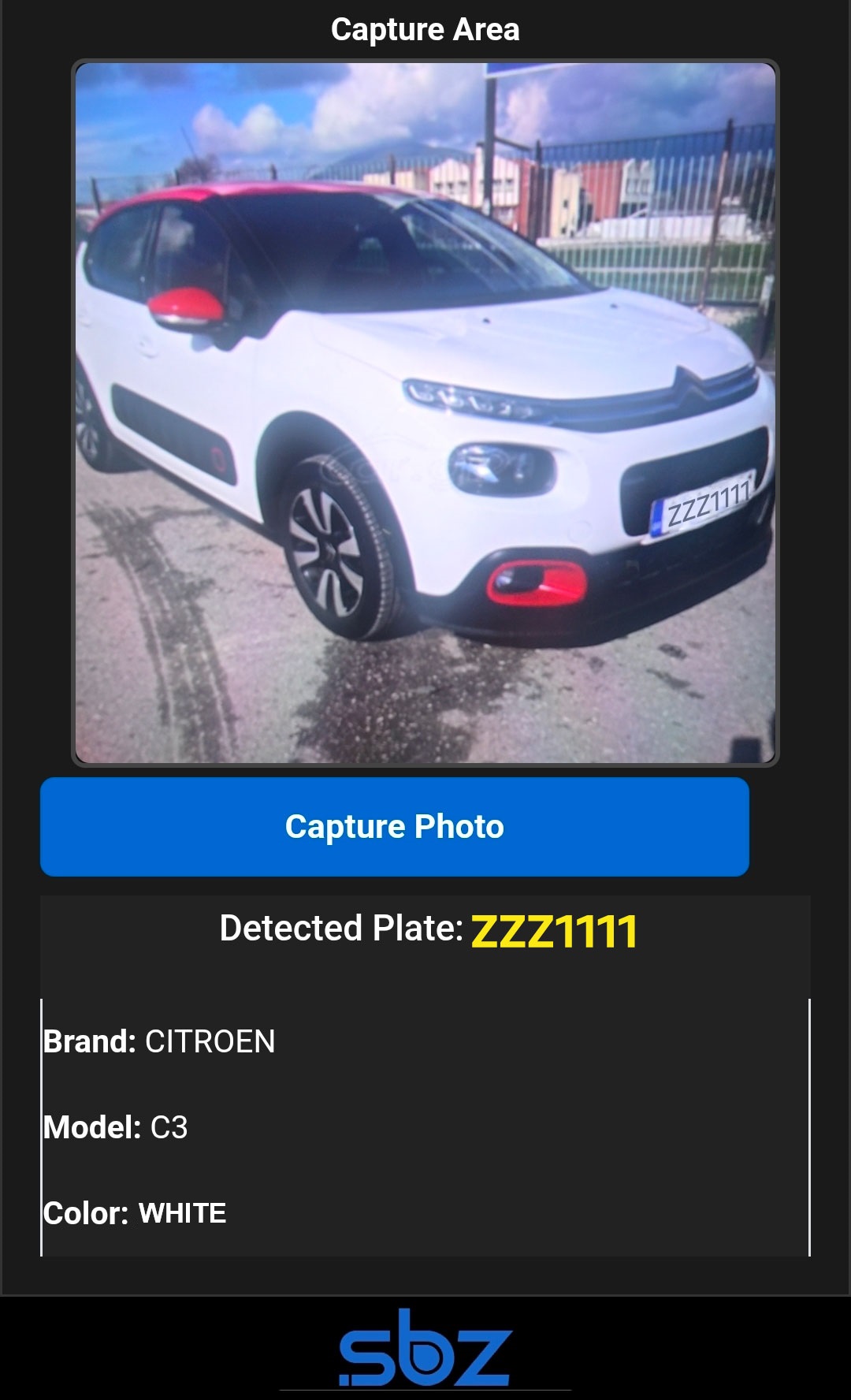
4. In the application that opens on your mobile device, take a photo of the vehicle by pressing “Capture Photo.”
5. All vehicle details will automatically appear on your mobile screen. After confirming that the information is correct, return to EMDI.
6. Right-click again on the three dots and select “Retrieve Last Vehicle.”

7. A window will automatically appear displaying all the vehicle information exactly as it appeared on your mobile device..
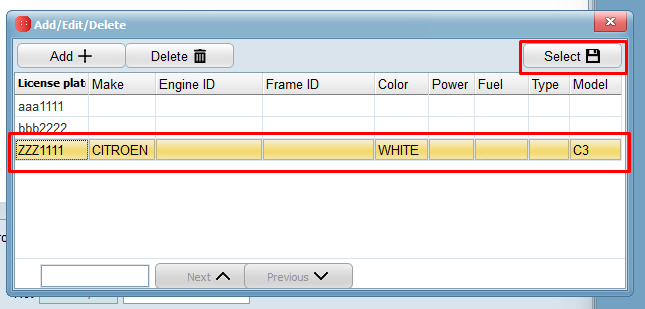
8. By clicking “Select 💾”, the vehicle details are automatically added to the document.