


To export data to a third-party general accounting program, first set the accounting accounts in the master files, then set the export options on the Connectivity tab.
Who uses it: an accountant or a user who prepares files for import into an external accounting program.
Before you start
Enter the matching accounting accounts in these places:
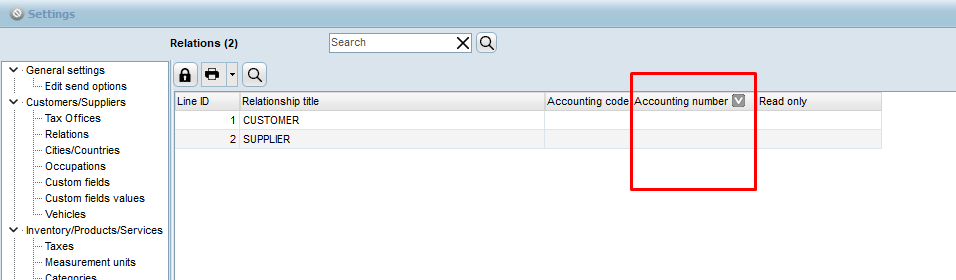
- Relations — you decide if the relation is a customer or a supplier based on the accounting account.
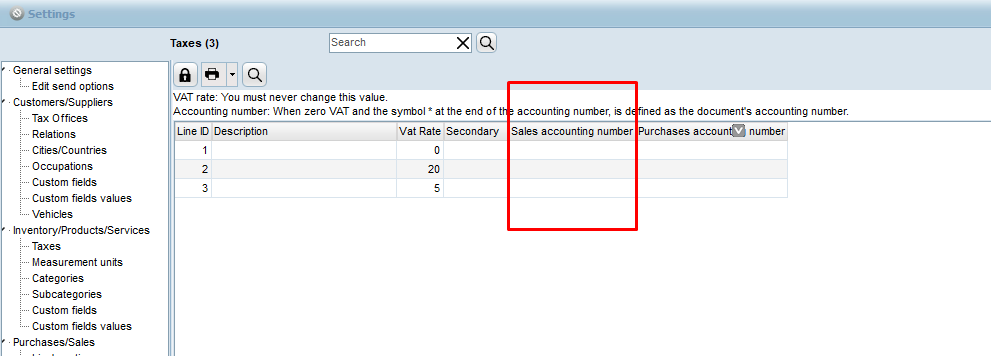
- VAT — in Simple accounting only the last 2 digits of the VAT account are used; they are appended to the end of the document account. If you want the full VAT account, put an asterisk (
*) before or after the account.
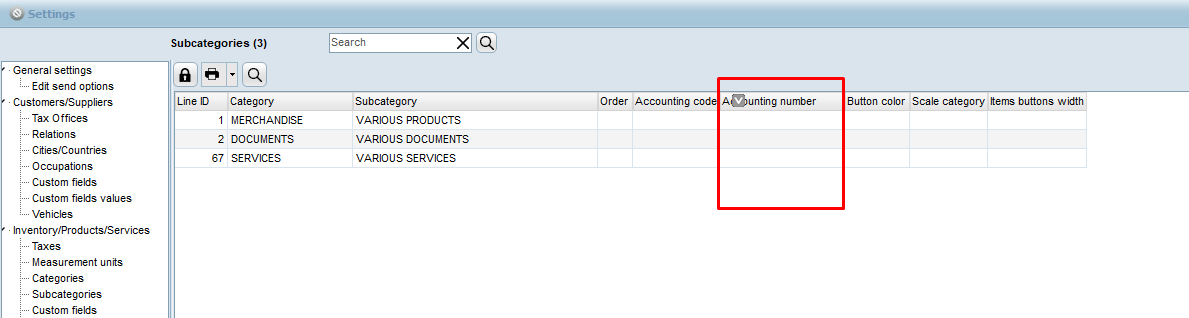
- Subcategories (optional) — accounts related to subcategories.
- Documents — per document you set the accounting code and account.
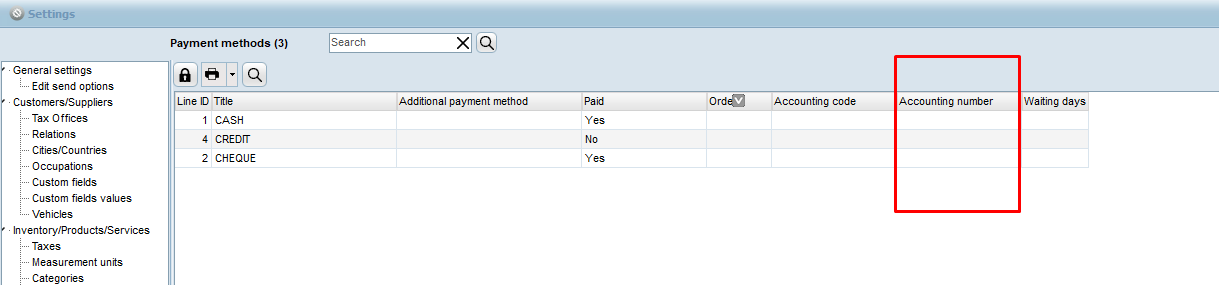
- Payment methods — accounts related to the payment method.
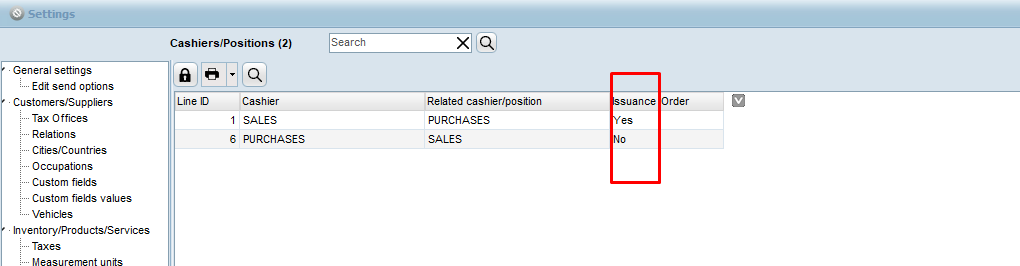
- Cashiers/Positions — set the cashiers/positions that issue documents (Issuance = Yes).
Where to find the screen
Open Income / Expenses / Reports and open the Connectivity tab.
Screen map (Connectivity)
- Storage folder — folder where customer/supplier and transaction files are saved. Use the browse button to choose a folder.
- Month on date — if enabled, the month is written into the last 2 digits of the accounting account.
- Collection in paid — automatically creates payment/settlement lines in the export.
- VAT rates in accounting — maps VAT rates so they match the accounting program. Example:
13|15,24|53(separate multiple rates with a comma). - Exclude relations — relation codes to skip in the export (comma-separated).
- Selected documents — click the field to choose which documents to export. If empty, all documents apply (based on period/filters).
- Empty VAT ID — replacement value when the customer/supplier has no VAT ID. These cases also appear in the Inconsistencies list.
- Separator — CSV field separator (default
;). - Redemption / Non-Redemption — movement codes for paid and unpaid documents (default
001/002). They must not be the same. - 2nd account VAT — based on this VAT, the 2nd accounting document code and the 2nd accounting account are taken from the document. Separate multiple VAT values with a comma; the decimal separator is a period.
- Payment method line ID — cash payment-method line ID. If empty, cash means payment methods with settlement “Yes”. Separate multiple IDs with a comma.
- Descending numbering — line numbering in Analytic accounting.
- Sign based on document — export amounts follow the document sign (for example credit notes/returns as negative).
- Accounting — Analytic or Simple.
- Output format — on the screen, Excel 97/2000/XP, CSV, or Open Document Spreadsheet (ODS).
- Export of customers/suppliers/transactions — starts the export.
- Inconsistencies — list of warnings during export (for example an empty VAT ID that was replaced).
First steps
- Fill in accounts in Relations, VAT, Documents, Payment methods, and Cashiers/Positions.
- Open Connectivity and set a valid storage folder.
- Choose Analytic or Simple and the file format (usually CSV or Excel).
- Set optional fields (VAT mapping, exclusions, selected documents, and so on) as required by your accounting program.
- Click Export of customers/suppliers/transactions.
Useful tips
- The tab settings are saved and restored the next time you open the screen.
- If there are customers/suppliers without a relation, a warning appears that they will not be included.
- Without a valid storage folder the export does not continue (even if the format is “on the screen”).
Related
For the export file fields, see Export ASCII files for accounting software.