


EMDI offers document-line import from many market software applications and all common text-based files, making it easy to transfer sales/purchase data and exchange information with other software.
The file imported into EMDI can be Microsoft Excel 97-2003 (.xls), Excel (.xlsx), or text-delimited format (.csv/.txt/.db). It does not matter which software generated it, as long as it is a proper worksheet or an Excel/CSV export from a compatible application.
The import flow is simple and runs from the PURCHASES/SALES tab, enabling automatic line import into existing or new documents.
What Document-Line Import Does
- Opens the source file and displays all columns for mapping to document-line fields.
- Offers automatic field matching when headers are correct.
- Can append lines to existing documents or auto-create new documents with full data.
- Supports filtering by specific document, all documents (symbol *), or selected targets.
- Saves and restores profiles (columns, rules, stock movement fields, document fields, all options) for reuse.
- Supports per-column transformation rules (match/replace), including automatic template generation from file data.
- Supports row range import (From – To).
- Supports up to 255 input columns with dynamic mapping controls and synchronized rules-per-column.
File Requirements
- Use clean columns without merged cells.
- The first row may contain headers (recommended).
- For CSV, set the correct delimiter (for example ; or , or | or space).
- Each imported line should contain at least an item code and quantity.
- You can define default values in 2 fields (constant values for each import run).
- For automatic new-document creation, include required document fields (number, series, customer, etc.).
Import Document Lines in PURCHASES/SALES – 8 Steps
- Open PURCHASES/SALES and right-click on the documents panel, or use OPTIONS -> EDIT.
- Select “IMPORT DOCUMENT LINES FROM FILE” and confirm the import process.
- In the first prompt, choose whether your file has header titles. Select YES when headers are valid.
- Click “OPEN” and select your Excel (.xls/.xlsx) or CSV (.csv/.txt/.db) file.
- Set delimiter (for CSV) and starting data row (for example row 2 if row 1 contains headers). Default fields are auto-filled by the system.
- Map import columns to document-line fields (item code, quantity, description, price, etc.) or accept auto-suggestions.
- Select target document behavior: (a) existing document filtering, (b) * for all, or (c) create new document from file fields (customer, series, number, date, payment, etc.). Save as profile for future runs.
- Click “IMPORT” to start. The program shows how many lines were inserted or updated.
Document-Line Import in PURCHASES/SALES
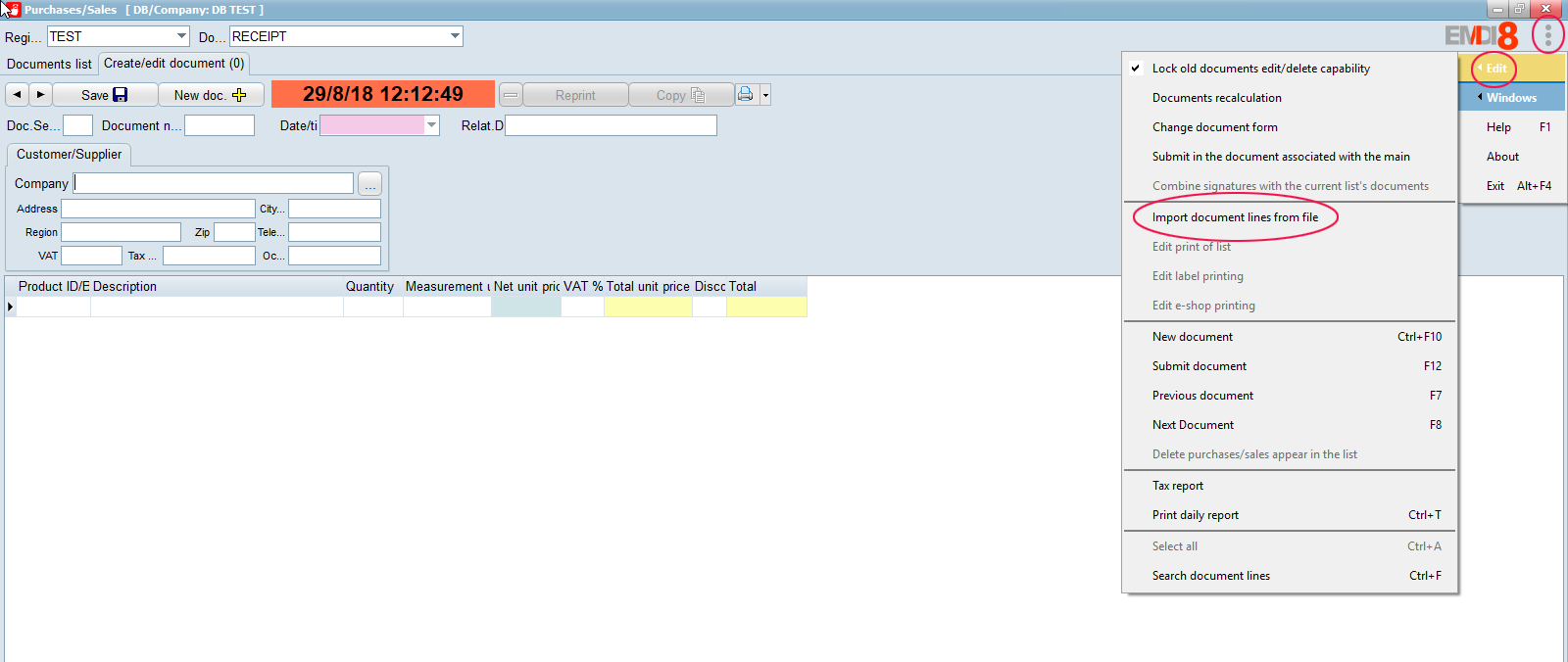
Click Yes in the prompt so the import window opens.
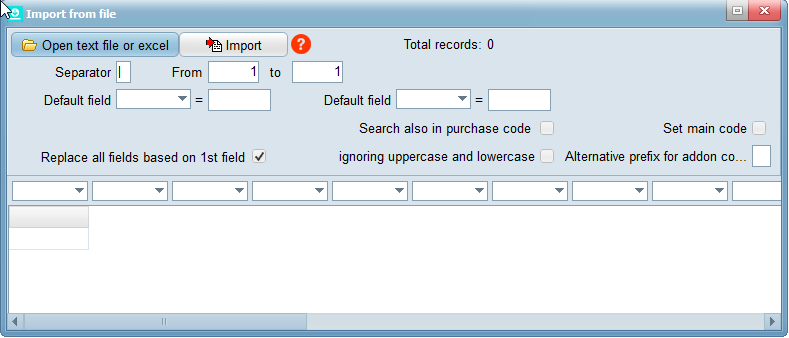
Choose Open text database to open the Windows file picker. Select the file that contains the lines you want to import. If the source headers are correct, you can choose automatic field mapping; otherwise, map fields manually.
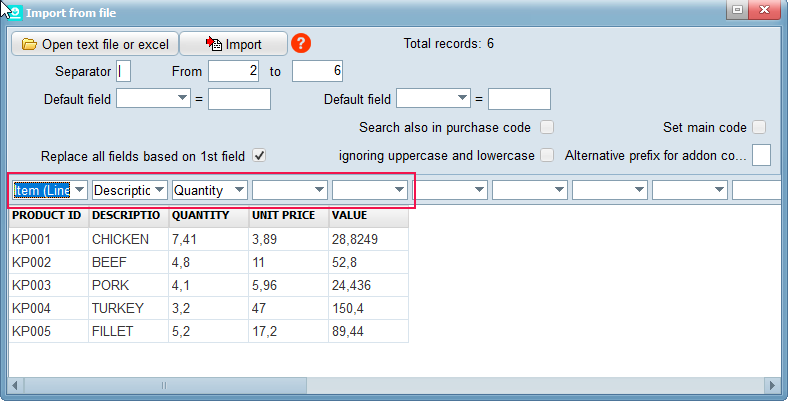
At From .. To, define which source rows will be imported. Usually row 1 is headers, so import starts at row 2.
Also enable search in purchase code, barcode, and custom fields when needed, so item matching covers all relevant identifiers.
(In this example, the file field “item no” belongs to the supplier and does not exist as-is in EMDI. The barcode field exists, so map that as item code and use the adjacent quantity column.)
Finally, click Import to begin processing the data.
Import Rules
Value-conversion rules are configured directly in the import screen, in dedicated rule fields under each mapped column. Each rule follows the format file|database|replacement and is applied before data is saved.
- Per-column rule setup: Each import column has its own rule field. Enter lines like: file_value|database_code|replacement_value
- Automatic generation (“Insert unique column values”): Right-click a rule field and choose “INSERT UNIQUE COLUMN VALUES” to generate a template from unique source values
- Save and reuse: Rules are stored with the import profile (“Save Profile”) and applied automatically in future runs with that profile
- Rule example: If file column is “A” and it must become “DECEMBER”, use: A||DECEMBER. If the file column is “A” and only when the EMDI database entry is “B” should it be changed to “DECEMBER,” use: A|B|DECEMBER.
Useful Import Options
- Case-insensitive matching: Enable “Ignore lowercase/uppercase differences” for more flexible key matching. Default: ON
- Multi-path item search: Search by main item code, barcode, custom indexed fields (with or without alternative prefix), and purchase code. Enable custom/barcode search as needed
- Price selection (9 calculation modes): Choose how line price is calculated for new items: VAT included fixed/purchase/sales, percentage fixed/purchase/sales, or pre-VAT fixed/purchase/sales
- Profile storage: Save columns, rules, move fields, document fields, and options as a reusable profile
- Total stock availability mode: When enabled and quantity exists, the system auto-adjusts: New_quantity = Warehouse_availability – Imported_quantity
Right Panel Import Settings
The right panel in the import screen contains advanced settings for stock movements and automatic document creation/update. Each numeric field points to the source file column used for that specific value.
- Sales code: If enabled, the program writes the item sales code to imported lines, even when matching was done with a different code
- Alternative comparison prefix: Optional short prefix added during custom-field item search
- Expiration: Source column that contains expiration date for stock movement
- Position: Source column for shelf/storage position; also used in movement numbering (position x 10)
- Batch lot: Source column for lot/portion value
- Batch line: Source column for batch/internal movement number
- Weight: Source column for weight; value is converted to numeric before save
- Value: Source column for movement value
- Area: Source column for area, when applicable to the item
- Volume: Source column for volume, when movement must include it
- VAT ID instead of customer code: If VAT checkbox is enabled, customer search uses VAT ID instead of code. Same logic can apply for recipient/issuer fields from file
- Customer code: Source column for customer; one of the key fields for automatic new-document creation
- Supplier/issuer code: Source column for issuer/assignor; when matched, it is converted to internal customer Aa
- Delivery customer code: Source column for recipient/delivery customer; mapped to internal customer Aa
- Payment method: Source column for payment; matched against settlement/payment descriptions
- Document type: Source column for document type; matched to document table to retrieve correct Aa
- Date: Source date column; if empty, current date is used for new document
- Series: Source column for document series
- Document number: Source column for document number; also a key field for new-document creation
- Comment: Source column for document comments
- Custom fields 1-5: Optional source columns for the five custom document fields
- Shipping place: Source column for place of dispatch
- Loading place: Source column for place of loading
- Vehicle number: Source column for plate/vehicle identifier
- Shipping method: Source column for shipping method; mapped by title to shipping methods table
- Movement purpose: Source column for movement purpose; mapped by title
- Unique registration number (mark): Source column for
markwhen available in file - Signature: Source column for signature value
- When new documents are created: Automatic creation requires, at minimum, mapping for customer, payment method, document type, and document number. Additional fields are applied when available
CSV Example
For CSV files, first set the correct delimiter in the Delimiter field (for example ; or , or | or space).
|
1 2 3 4 5 6 |
Date;Invoice No.;Code;Document;Product;Quantity;Payment;Balance 6/5/26 10:00;1;C3;134;BALANCE;1;1;7524.66 6/5/26 10:00;4;C18;134;BALANCE;1;1;-245.06 6/5/26 10:00;5;C20;134;BALANCE;1;1;6606.91 6/5/26 10:00;14;C34;134;BALANCE;1;1;-0.01 6/5/26 10:00;16;C28;134;BALANCE;1;1;-0.08 |
To force a line break inside a description, use \n.
Notes
- Keep a backup before any mass import operation
- Test first with a small sample (3-5 lines) on a test document before production import
- Save separate profiles per supplier, file format, or document type (purchases vs sales)
- Validate mandatory data: Every line should include item code and quantity for correct import behavior
- Check new-document fields: If creating new documents, verify customer, series, number, date, and document type mapping
- Test rules before bulk use: Confirm match/replace rule output with a test run before large imports
With the right combination of profiles and transformation rules, EMDI document-line import becomes fast, repeatable, and safe.