Changing the Price of a Product for a Specific Document
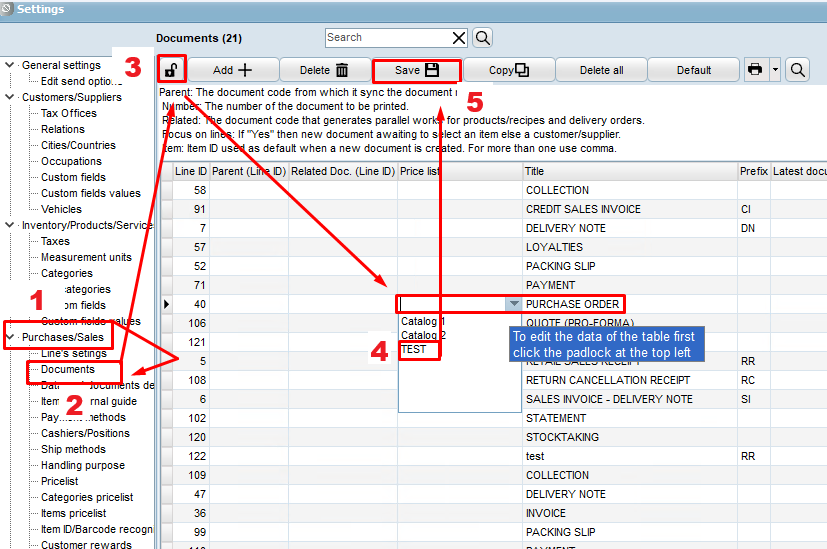
(Image 1)
When we want to change the price of a product for a specific document:
-
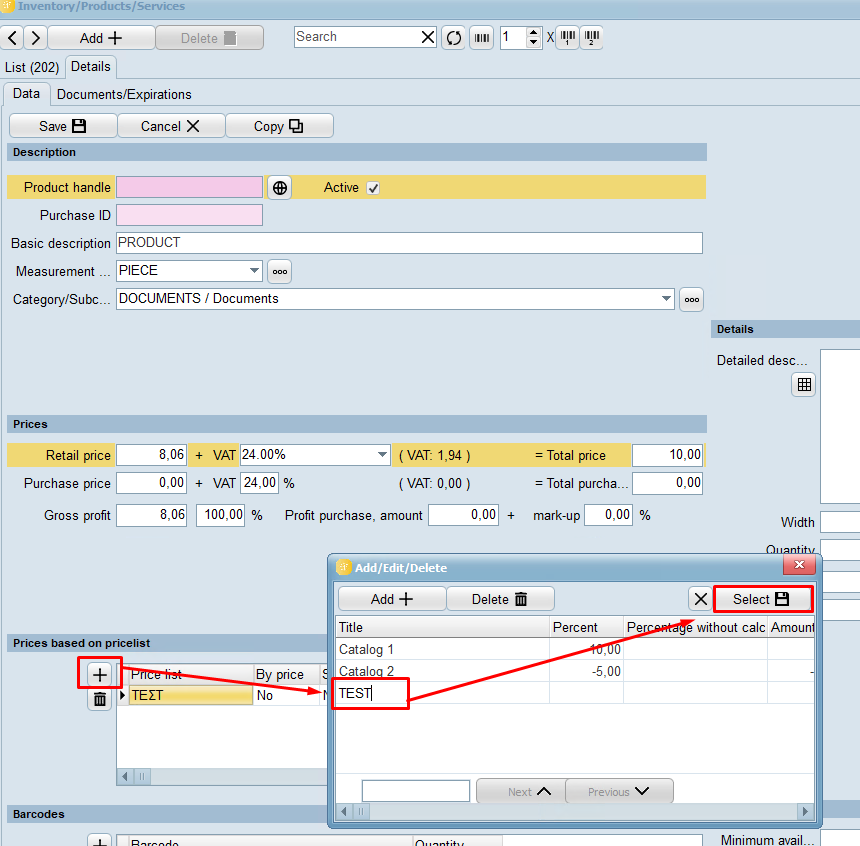
Go to Warehouse 🟡
-
Open the product you want
-
Click the + in the “Price Lists” field
-
Click Add +
-
Enter the name of the price list
-
Click Select 💾
Setting the Price in the Price List
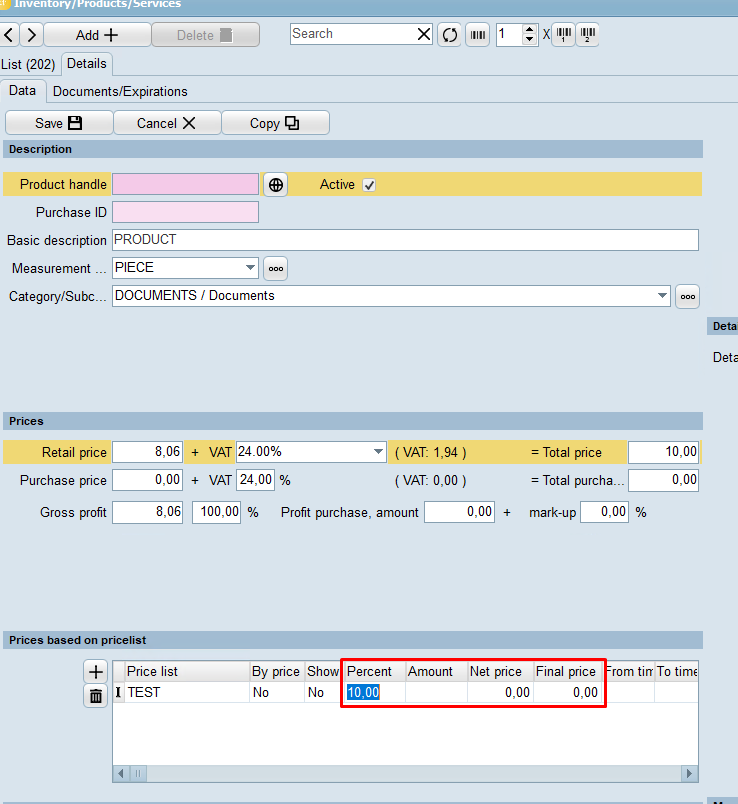
(Image 2)
Once the price list row appears, you can change the price using one of the following methods:
By percentage (%)
Enter the percentage (%) by which the price should increase or decrease.
By amount (+ / -)
Enter the amount in euros to add or subtract:
-
If the product price is €10 and you want it to become €15, enter 5
-
If you want it to become €5, enter -5
By net price (before VAT)
Enter the new net price (before VAT) directly.
Example: If the current net price is €5 and you want it to be €7, enter 7.
By final price (including VAT)
Enter the final price including VAT directly.
Example: If you want the final price to be €7, enter 7.
🔁 Repeat the same steps for every product you want to change.
1. 2.
2.
Activating the Price List for the Document
After you have made all the required changes:
-
Go to Settings ⚙️ → Purchases / Sales → Documents
-
Click Unlock 🔒
-
Find the document where the price list should apply
-
Select the price list
-
Click Save 💾
✅ The products in this document will now use the prices you defined in the selected price list.