


A Self-Billing Invoice is a case where the invoice is not issued by the seller/supplier, but by the buyer on behalf of the supplier.
To create it in EMDI, go to the grey icon ⚙️ Settings → Purchases/Sales → Documents.
Unlock the settings using the 🔒 icon, click Add (+), enter SELF-BILLING as the document title, and set the movement type to Sell/.
Click Save 💾.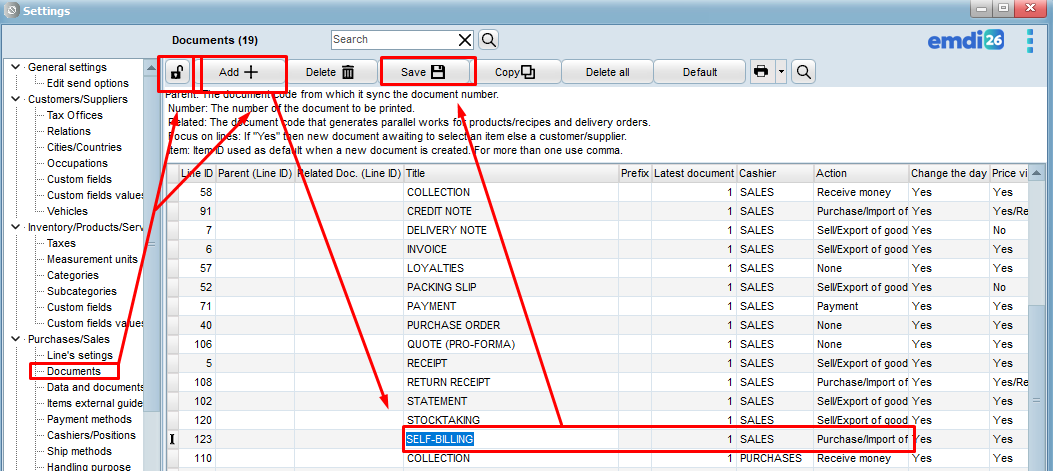
Additionally, you need to create a Self-Billing VAT entry.
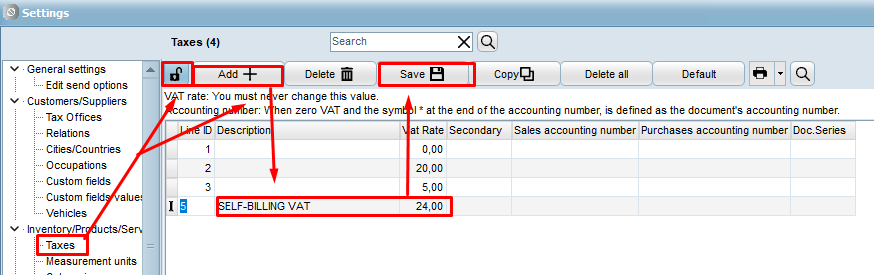
Go to the grey icon ⚙️ Settings → Inventory/Products/Services → TAXES.
Unlock using the 🔒 icon, click Add (+), enter the title Self-Billing VAT, and set the VAT Rate to 24%.
Then go to Tax Connections → Variable Mapping and configure the following settings:
SELF-BILLING Document Mapping:
- Authentication/Marking:
-
- EMPTY if documents are transmitted directly to myDATA
- Provider if using SBZ Certified e-Invoicing Provider
- Summary Reports: Revenue
- myDATA Category: category2_1 (Commodity Sale Income)
- myDATA Document Type: 1.1 (Sales Invoice)
- myDATA Type: E3_102_001 (Fiscal Year Commodity Purchases– net amount / Wholesale)
- Other Settings:
- ✔️ Delivery Note
- ✔️ Self-Billing
Self-Billing VAT Mapping:
- myDATA Expense Type:
- Expense Classification Code: VAT_361
- myDATA VAT Category: 1 = VAT Rate 24%
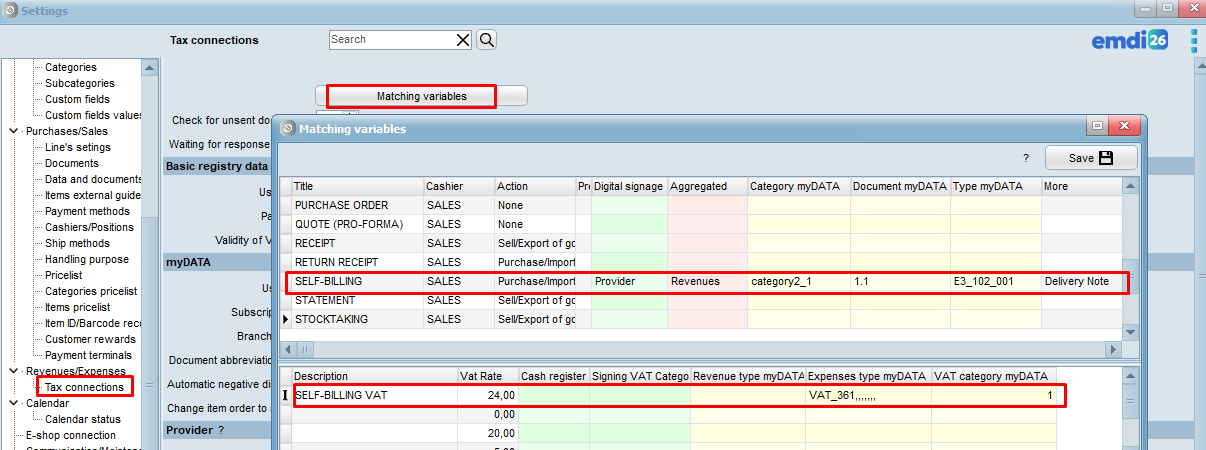
Finally, click Save 💾.