EMDI database synchronization is needed when you work with more than one database (for example a store and a central office, or a local and a remote database).
It transfers data in one direction only: from the current company/database to the remote one (the - > button in the sync window).
- Customers/suppliers
- Warehouse/services (items)
- Purchases/sales (documents and lines)
- Price lists
You can synchronize several databases in sequence. Set the directions after you select the corresponding database in DB / Company and click save in sync.
One-way synchronization
For sales, in the Cash register line code field enter the cash register line code, or several codes separated by commas. Only documents of those cash registers are synchronized.
The line codes of the cash registers and of the document types must be the same in the current and the remote database.
If you enable documents, you can also check In documents for customers or items, so that customers/items that appear on the synchronized documents are included as well.
With items you can also sync (if selected) categories, subcategories, units of measure, VAT, and related products and barcodes.
With customers you also get relations, tax offices, professions, cities and vehicles.
Synchronization is based mainly on the modification date (and for documents also on the document date). You can set the starting point with the sync time button.
If the two databases differ by more than 10 seconds, synchronization stops. Keep the computer/server clocks correct.
With Based on code, customers and items are matched by their code (not by the internal Aa). Useful when the two databases have different Aa values for the same item/customer.
How a document is matched on the destination
When purchases/sales are synchronized, EMDI first looks for the same document in the destination database.
If it finds it, it updates it unless you checked Sync only new documents. In that case it skips documents that are already complete on the destination; otherwise it inserts it as new.
Matching uses these criteria:
- Series: if the series is empty, it matches an empty or null series on the destination. Otherwise the series must be the same.
- Document number: must be the same.
- Document type: must be the same, or empty on the destination (an unfinished previous sync that will be completed).
- Date/time: must be the same, including seconds.
- If the source document has a myDATA MARK, that MARK must also match on the destination.
- If there is no MARK, the document total must also match.
This avoids duplicate inserts when the same document is synchronized again.
If you change date/time, series, number or total (and there is no MARK), it will be treated as new and inserted a second time.
During sync, the document type on the destination is cleared temporarily until the lines are copied, then it is finalized. If sync is interrupted, an “incomplete” row may remain, but on the next sync EMDI finds it and completes it, even when Sync only new documents is enabled.
Define databases for synchronization
Any database in the «DB/Company» list can take part in synchronization.
In the «Remote database» column write the Title of the database you want to sync with.
If you set Remote database on several rows, synchronization runs from top to bottom for all of them.
Availability synchronization
If you want availability recalculated on the destination from its own documents, check Availabilities.
If you also sync sales, availability is recalculated on the destination after sync.
If you do not sync sales and only want availability updates (or copy into a custom field), use the related warehouse options without document sync.
Customer balances
There are two modes:
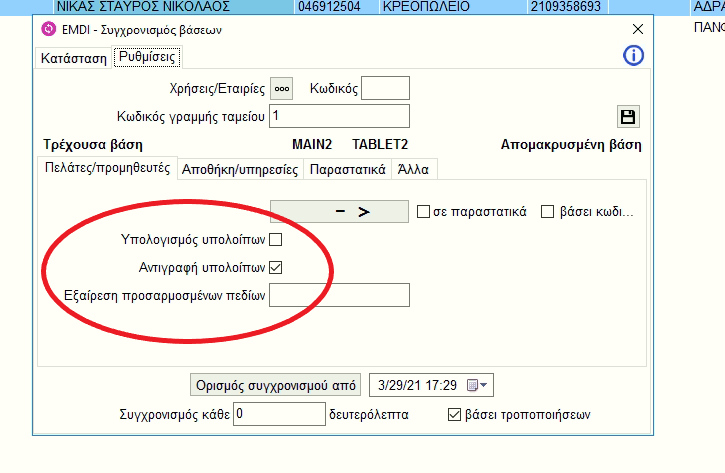
- Copy balances: copies balances as they are from the current database to the remote one. The database with the correct balances must be on the left (current).
- Calculate balances: recalculates balances on the destination from its own documents after sync.
Do not use both options together.
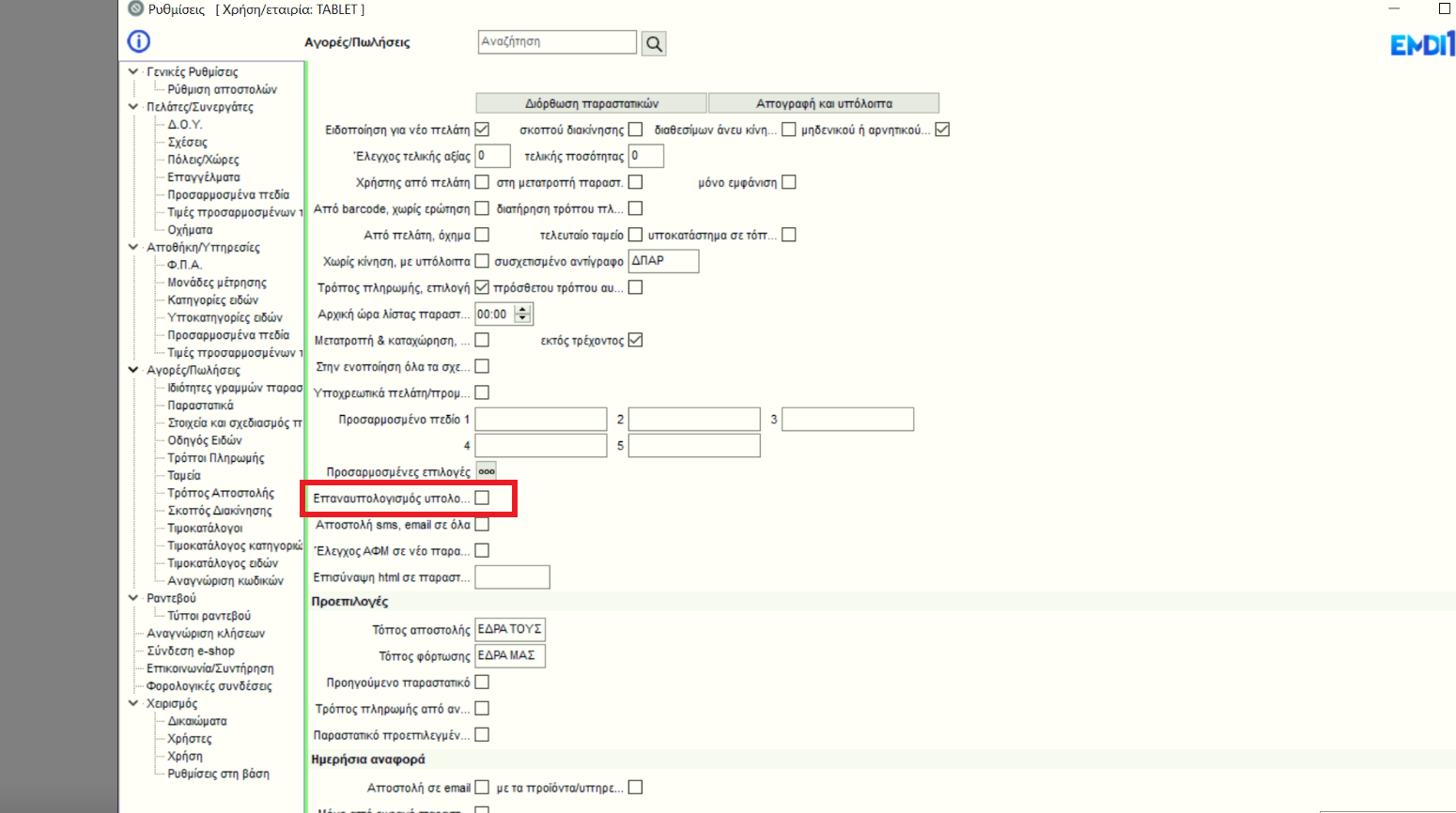
It is also a good idea to turn off balance recalculation on the remote database where balances are copied, so it does not change them every time you enter a document there. On the central database with the real balances, keep it enabled.
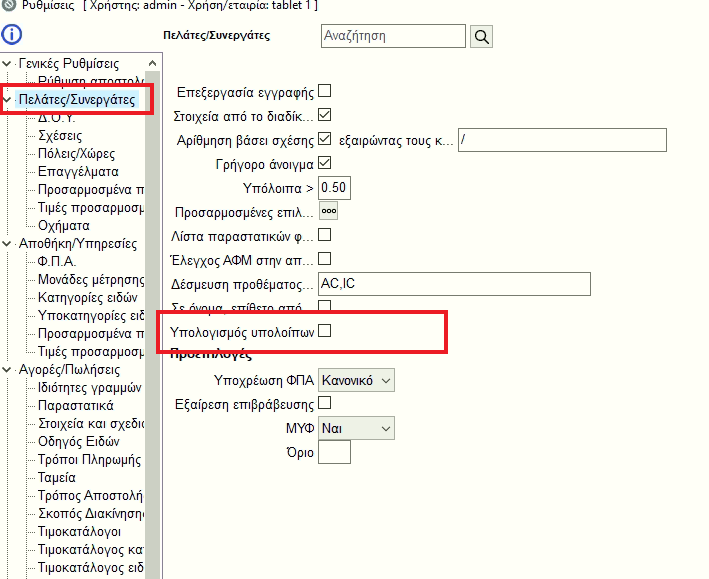
The same applies in Purchases/Sales settings for balance recalculation.