


Preparation (In your Current Database)
Before starting the process, you must perform the following calculations to ensure data integrity:
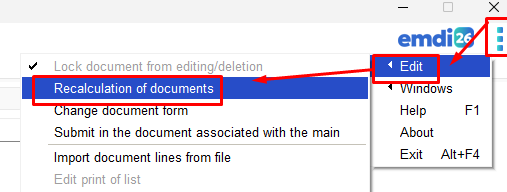
- Purchases/Sales 🔴: Click (3 dots) -> Edit -> Recalculate documents.
- Customers/Suppliers/Contacts 🟢: Click Edit -> Calculate balances.
- Warehouse/Products/Services 🟡: Click Edit -> Calculate availability/warehouse sales.
Creating a Copy of the Database
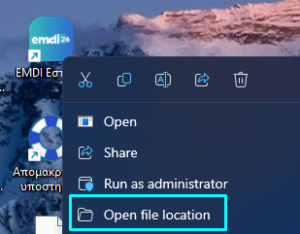
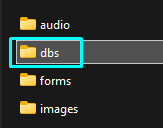
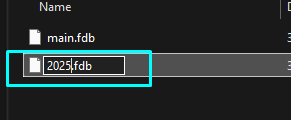
Local Installation: 1. Right-click the EMDI icon on your desktop and select “Open file location”. 2. Open the folder named “dbs”. 3. Copy your database file (e.g., EMDI.fdb) and rename the copy for the new year (e.g., 2026.fdb).
CLOUD Installation:
- Email the SBZ support team at support@sbzsystems.com to request a new database.
- Our team will send you the path and the name of the new database.
Connecting the New Database to EMDI
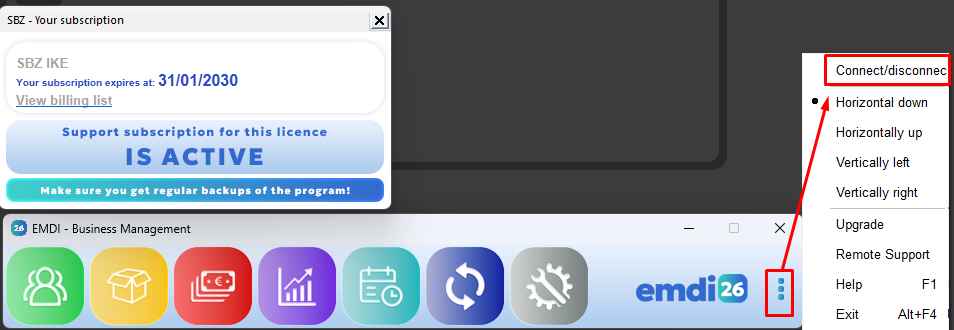
On the EMDI menu bar, click the three dots and select “Connect/Disconnect”.
In the “Usage/Company” field, click the button with the 3 dots.
Unlock the padlock (🔒->🔓).
In the “Database” field, paste the path of your new database:
-
-
Local Path Example:
C:\Program Files (x86)\SBZ systems\EMDI\dbs\2026.fdb -
Cloud Path Example:
C:\Users\username\Documents\EMDI\dbs\2026.fdb - In the “Title” field, enter a name (e.g., Fiscal Year 2026).
-
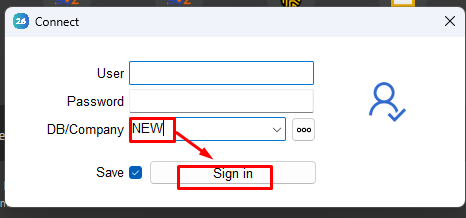
Click Save 💾 and log in to the new database.

Stocktake Process (In the NEW Database)
Attention: The following steps must be performed exclusively within the new fiscal year database.
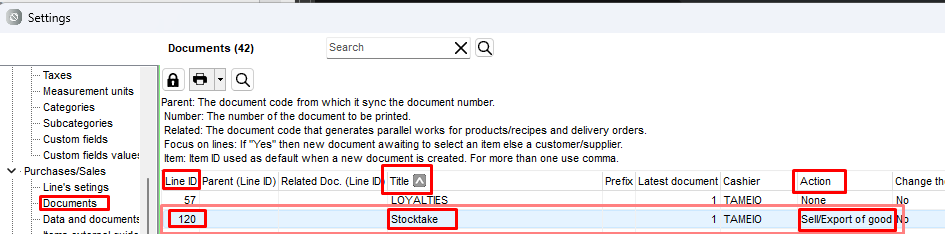
Document Setup: Go to Settings ⚙️ -> Documents. Ensure that the inventory document (e.g., 120 – Stocktake) is set to “Sale/Export of goods” and “Show prices: Yes”.
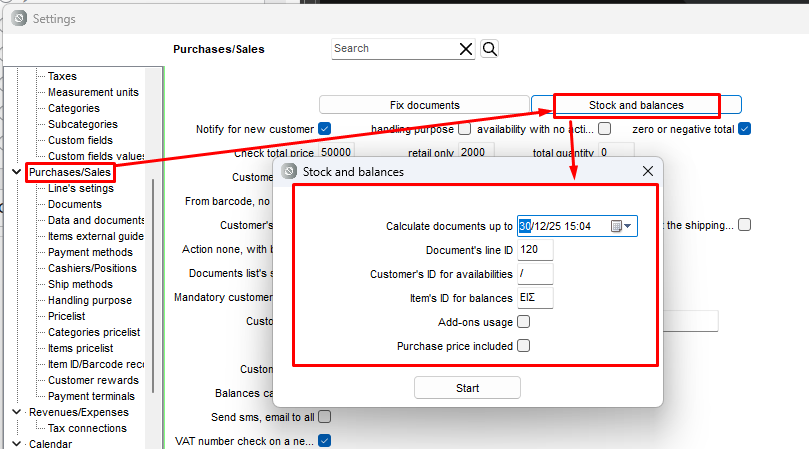
Execution: Go to Settings -> Purchases/Sales -> Stock and Balances.
Select the end date for the calculation and click Start.
-
-
Document Line Code: The ID of the Stocktakedocument (e.g., 120).
-
Customer Code for Availability: The customer under whom stock availability will be recorded (e.g., Retail Customer).
-
Item Code for Balances: The service item used for balance entries (e.g., Receipt/Collection).
-
Finalization
Once the process is complete, you must run the Recalculation (Step 1) again inside the new database to finalize the figures.
Important Note: For versions prior to 8.2019.1.x, you must delete the old documents in the new database using the following query:
delete from "pvlhseis" where "pvlhseis"."Hmeromhnia"<'1-1-2026';
|
1 |
delete from "pvlhseis" where "pvlhseis"."Hmeromhnia"<'1-1-2019'; |