


With EMDI you can retrieve documents directly from AADE myDATA and import them into a new document in Purchases / Sales, without typing everything from scratch.
The feature covers documents you received (As a recipient — purchases / incoming) and documents you issued that have already been transmitted (As an issuer). During import, EMDI transfers, when present in the myDATA data, counterparty details, line codes and descriptions, quantities, net amounts and VAT, plus header fields such as date, series, number and invoice mark (M.AR.K.).
You need an up-to-date EMDI (newer than 18 May 2026) and configured myDATA connection details (Aade User Id and Subscription Key). Without them, the import menu stays disabled. If you are unsure about your version or setup, contact support@sbzsystems.com.
Open Purchases / Sales and start from a new document (import cannot continue on an already posted document). At the top right, press the EMDI icon → Windows → Import a document from myDATA.
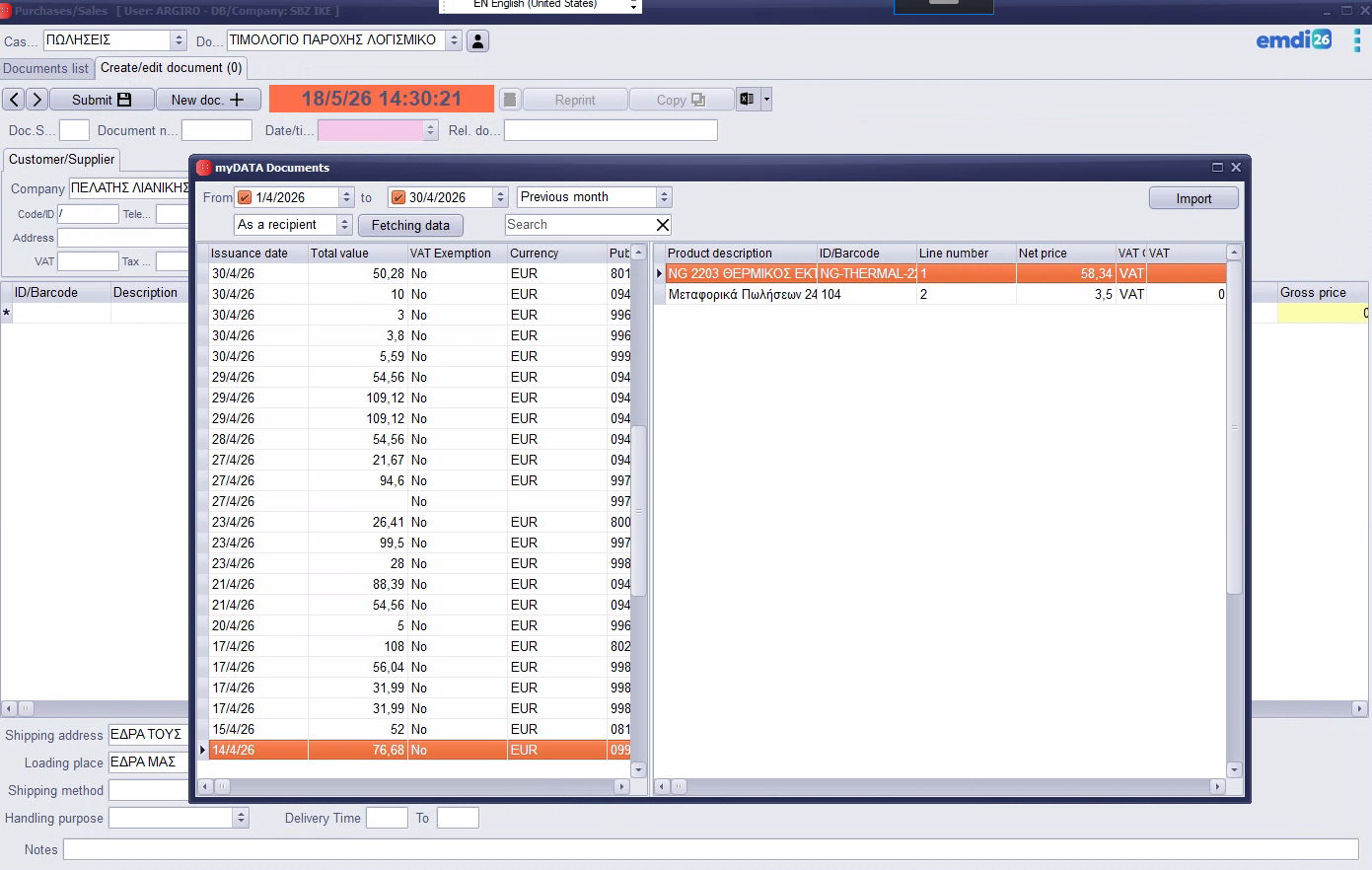
The myDATA Documents window opens. There you can:
- set From / to dates or pick a ready period (today, current month, etc.),
- choose the source: As an issuer or As a recipient,
- press Fetching data and confirm that data will be imported from myDATA,
- find the document in the list (you can use Search),
- review the item / service lines on the right before you continue,
- press Import.
Before importing, check that the register (cash desk) matches the source:
- As a recipient → a non-issuing register (e.g. Incoming Documents),
- As an issuer → a register that can issue documents (e.g. Cash Register).
If it does not match, a warning appears; you can continue or change the register and try again. Also check the document type before you finally save.
After the document is imported into the new document, EMDI asks whether rows from myDATA whose code does not match an existing item should be saved in the database as new items:
- Yes — new warehouse items are created for unknown codes and added to the document lines.
- No — the lines are added to the document without creating new warehouse items for unknown codes.
The counterparty is matched by VAT number or code to an existing card. If there is no VAT number but name/address details exist, you may be asked whether to create a new customer/supplier from the myDATA counterparty details.
On the Import button (right-click) there is the option Import invoice mark from recipient; use it when you need the invoice mark to be filled also when importing as recipient.
For best results, make sure item codes in myDATA are correctly submitted by the issuer so EMDI can match them more accurately to your warehouse. You can also open the myDATA / download invoice link from the list when the related button is shown.
Important: data is retrieved from myDATA as transmitted by the issuer. Final verification (document type, register, amounts, VAT, items, counterparty, accounting presentation) and final posting are your responsibility. SBZ Systems and EMDI are not responsible for incorrect or incomplete third-party issuer data shown via myDATA.